Logging In
To log in, enter your Email and Password in the fields displayed, select the checkbox beside I have read and I understand the Data Confidentiality Agreement, and click Log In. Your home page displays.
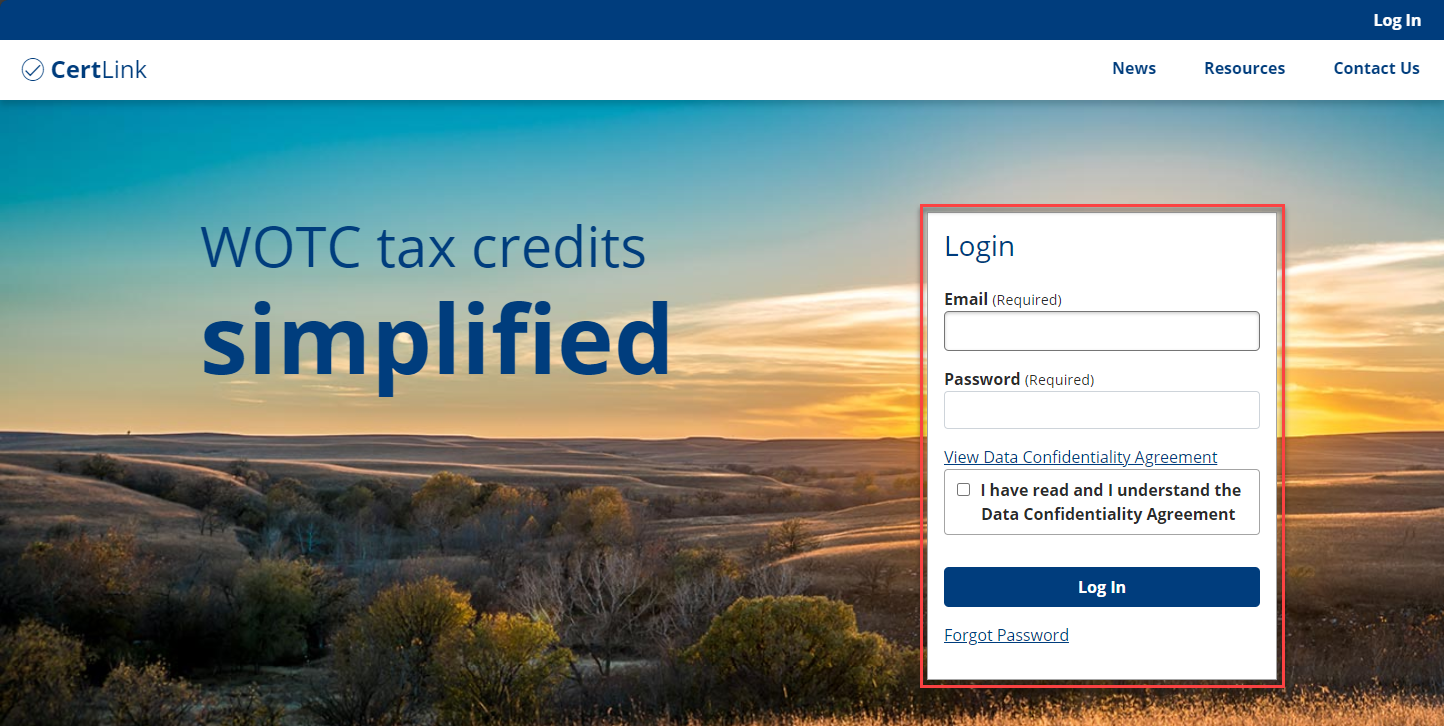
If you have forgotten your password, see the next section.
Retrieve Forgotten Password
- If you have forgotten your password, click Forgot Password below Log In. The Forgot Password page displays.
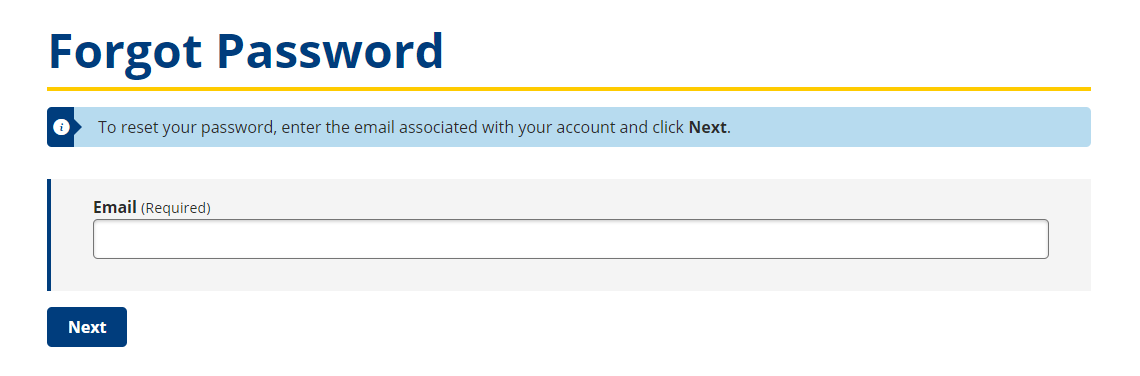
- Enter the email associated with your account in the Email text box and click Next.
- You are directed to a new Forgot Password page that displays your email address and fields for your Security Question and Security Answer. Enter the answer to your security question and click Submit., enter a new password, confirm the password and click Reset Password.
- A confirmation message displays on the Forgot password confirmation screen that says “Please check your email to reset your password.” Click the link in your email to be directed back to the Login page.
- Enter a new password and confirm it, then click Login. An account reset confirmation screen displays. Click Login to return to the home screen.
- Enter your email and password in the fields that display, select the checkbox beside “I have read and I understand the Data Confidentiality Agreement.”, and click Log In. Your home page displays.
System Timeout
When any logged in user is idle for a state-specified amount of time, the system displays a Timeout warning. The user is given the option to continue their session or log off. In case the user forgot to sign out of their account or does not click Stay Connected in the time allotted, the system automatically logs out of the current session.
- A timeout warning displays.
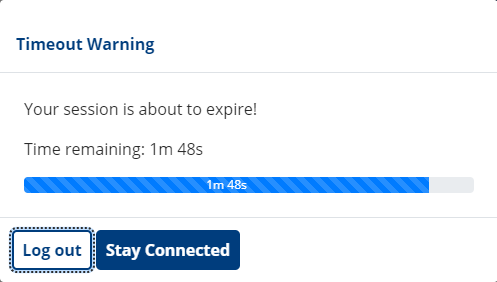
- To continue using the system, click Stay Connected. You may also select Log Out to disconnect your current session.
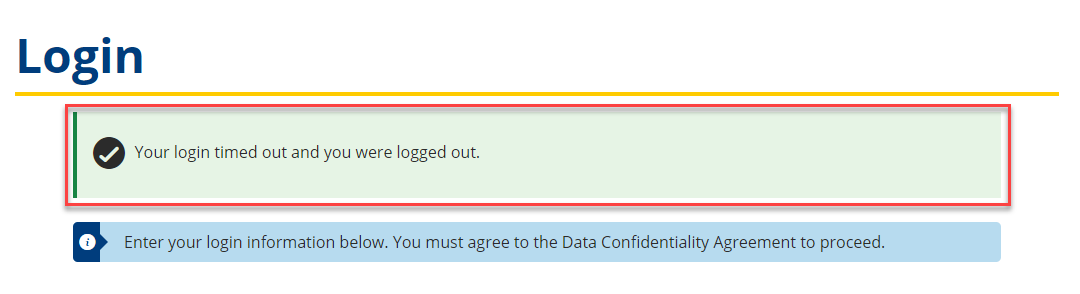
- If you have exceeded the allotted time, the home page appears with a validation message at the top.