Virtual Job Fairs - Job Seeker Guide
A Virtual Job Fair allows employers to offer information about job openings and gives job seekers the opportunity to interact with employers regarding these jobs.
-
Staff users can create Virtual Job Fair events and invite job seekers and employers to participate
-
Employers can create virtual "booths" that highlight their company's strengths and provide information to potential hires
-
Job seekers can browse an employer's job listings and can communicate directly with employers for interviews via video conferencing links
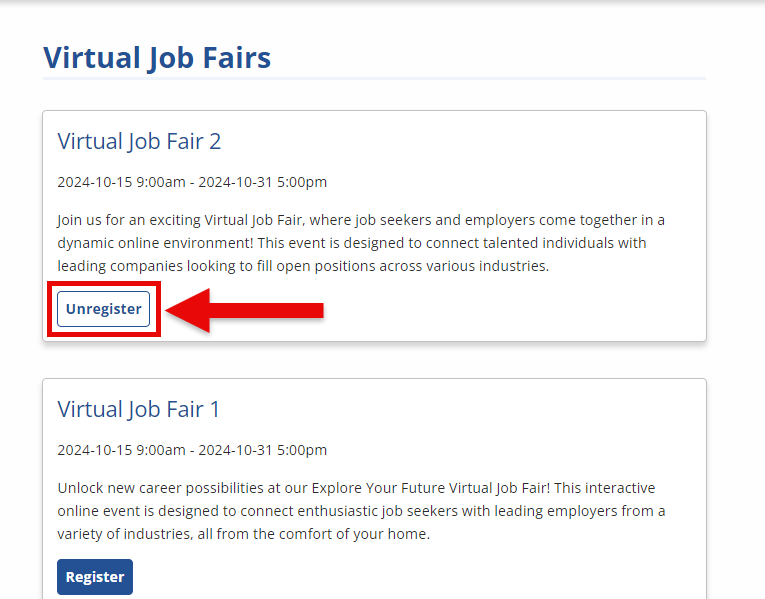
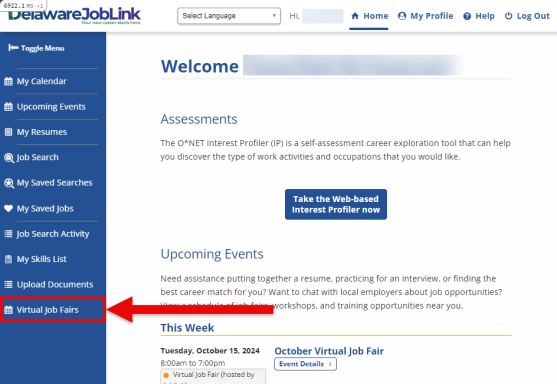
To view a list of upcoming, current, and past Virtual Job Fairs, select Virtual Job Fairs from the side menu (Virtual Job Fairs may not be available in your state).
Register
To register for a Virtual Job Fair, select Register on the Virtual Job Fairs page for the desired event. You may also select the event title and then select Register on the event's landing page.
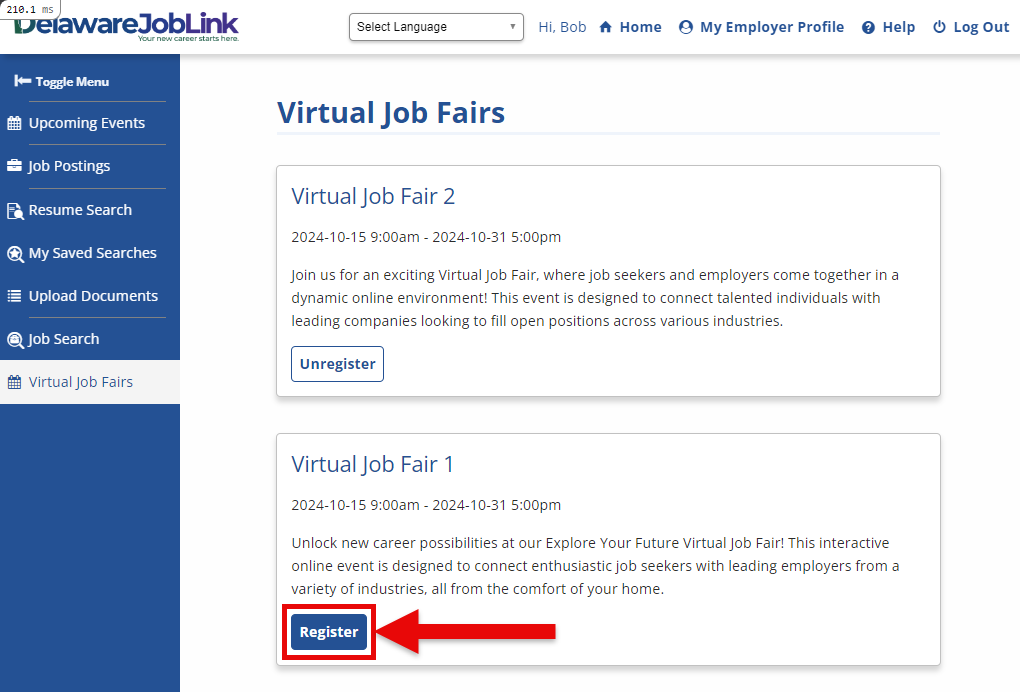
You can only register for an event if the event has not ended and open "seats" are still available (the number of job seekers already registered has not exceeded the maximum number of registrations allowed for the event).
Once you are registered, a notification is sent:
This is your registration confirmation for the [title] Virtual Job Fair on [date/time]. You muse be logged into your account to access this event.
Below are some best practices for the virtual platform.
1. Dress like it is an in-person event
2. Use appropriate language in the chat and not text abbreviations
3. Be prepared for a video interview
4. Know your surroundings
5. Test camera and microphone
An additional notification is also sent 24 hours prior to the Virtual Job Fair's start date:
You have an event coming up on [date/time]. You must be logged into your account to access the event.
The Virtual Job Fair also appears as a registered event on your Calendar page.
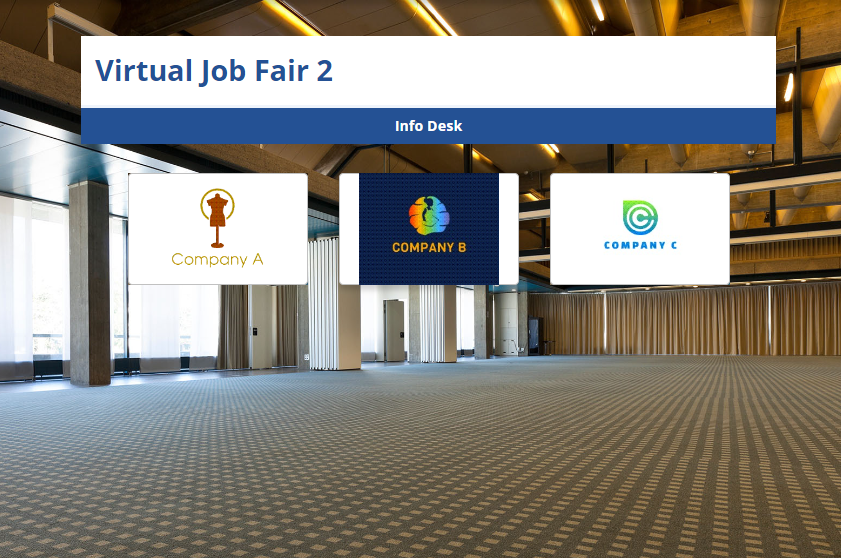
Select the event title to view the Virtual Job Fair's landing page.
-
Employers that have registered for this event appear as tiles with the employer's logo or name. Select a tile to view that employer's booth.
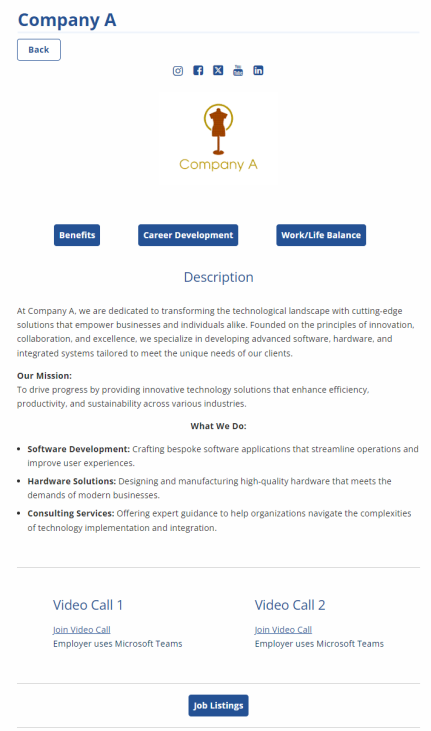
-
Links to the employer's social media accounts are displayed as icons below the employer name. Select an icon to open in a new browser tab.
-
There may be up to three buttons displayed below the employer's logo highlighting the employer's Benefits, Career Development, Culture, Diversity/Inclusion, Values, and/or Work/Life Balance. Select an option to view the employer's policies.
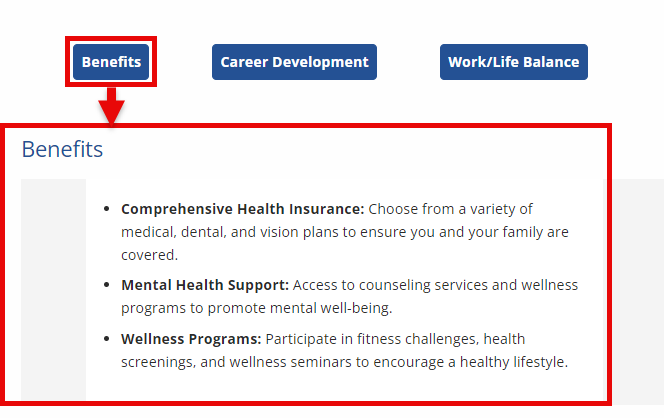
-
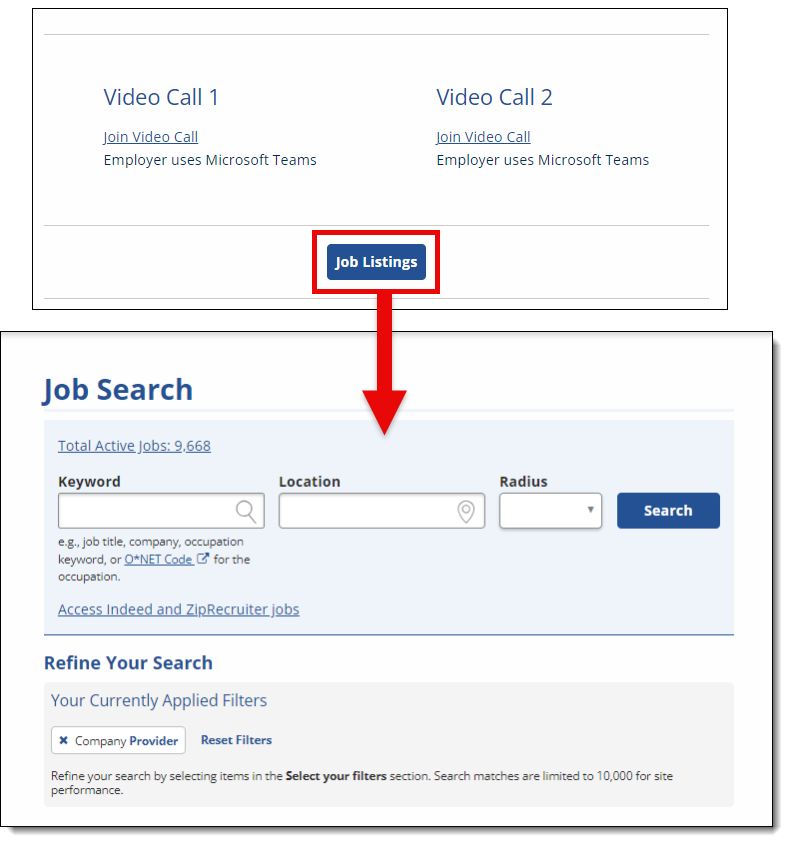
Select a Join Video Call link below the company's description to launch a video call with the employer's staff. The app used for the video call (Microsoft Teams, Zoom, etc.) is shown so make sure the app is installed on your device. There may be up to three Video Call links configured. The Video Call section and links only appear if the employer has a video call configured in the booth.
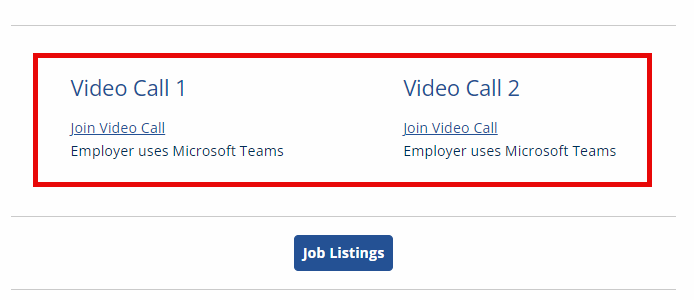
-
To view a current list of the employer's job listing, select Job Listings. You are taken to the Job Search page with the employer selected as a filter.
-
Select Back to return to the Virtual Job Fair's landing page.
-
Info Desk
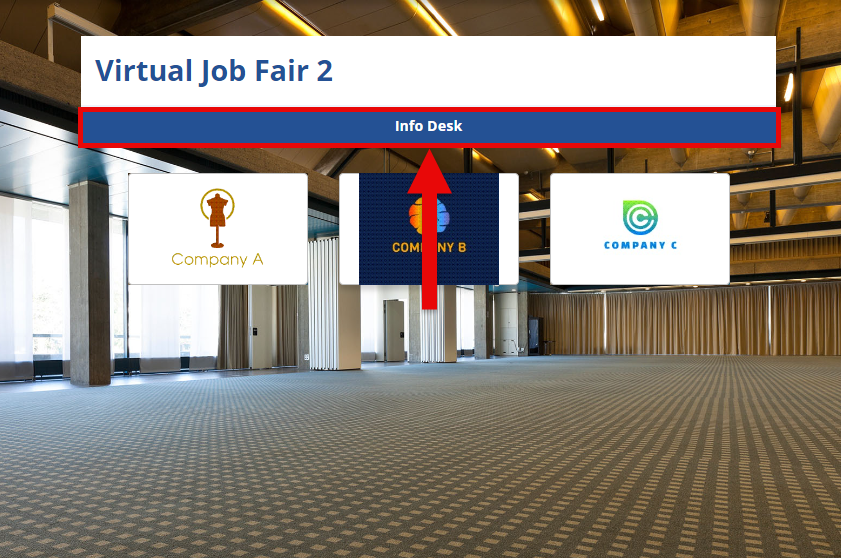
If you have questions and want to chat with an AJL staff member, select Info Desk in a Virtual Job Fair's landing page. A new chat window displays.
Unregister
You can unregister for a Virtual Job Fair at any time before the event starts by selecting Unregister on the Virtual Job Fairs page.