Employer Approval Report
To view a list of the employer accounts that have been approved, denied, or deleted in a specified date range, use the Employer Verification Report.
Generate the Report
- In the left-hand navigation menu, navigate to Admin Tasks > JobLink tab > Employer Approval Report tile. The Employer Approval Report page displays.
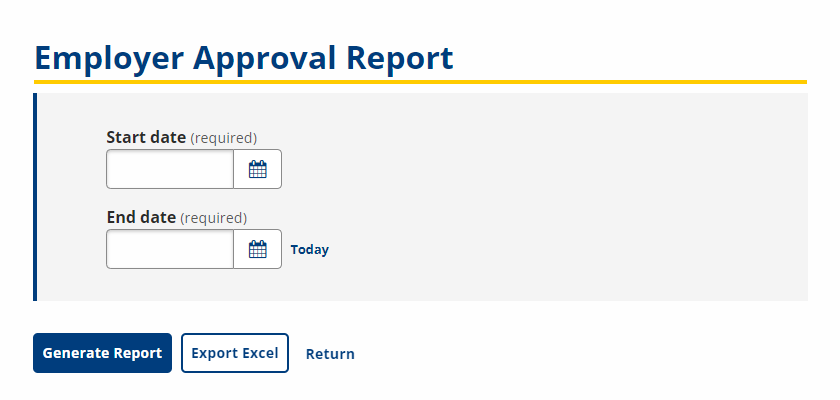
- Select a Start date and End date using the calendar tool, and then click Generate Report. The Employer Approval Report page displays.
- You also have the option to create an Excel spreadsheet of the report. Click Export Excel instead of Generate Report, and then download the file.
- You also have the option to create an Excel spreadsheet of the report. Click Export Excel instead of Generate Report, and then download the file.
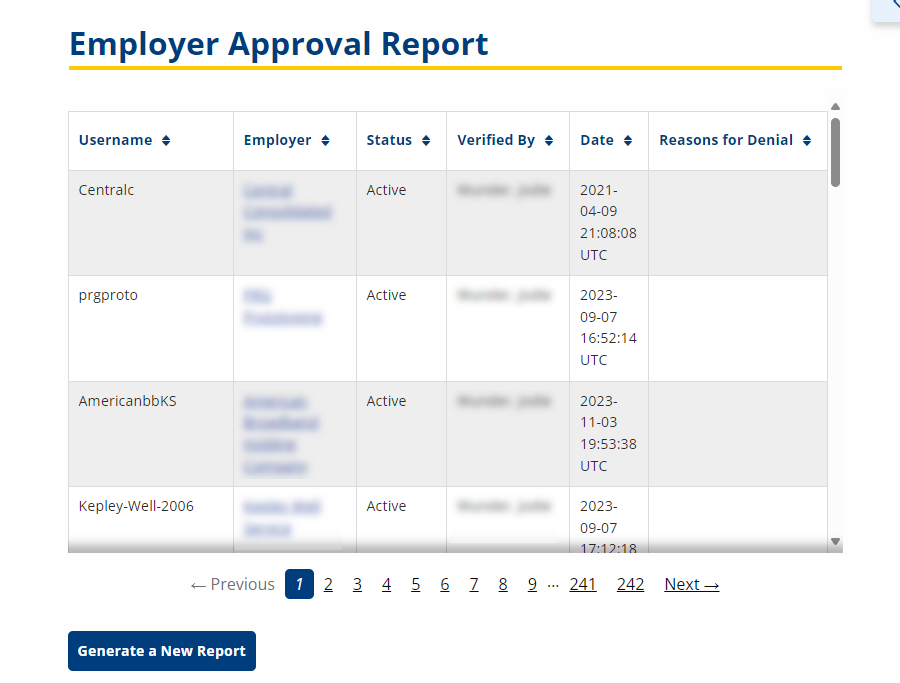
- A list of employers who have been approved (Active), denied, or deleted displays. Click a column head to sort by that value. The following information is available on the report:
- Username: Displays the employer account username.
- Employer: Displays the employer company name and links to the Employer Details page.
- Status: Displays the status of the employer: Active, Denied, or Deleted.
- Verified By: Displays the staff name who verified the employer.
- Date: Displays the date the employer was verified.
- Reasons for Denial: Displays the reason the account was denied, if applicable: Duplicate, Non-responsive, Suspicious, Third party, Unable to verify, or Does not meet the employer policy.
- Click Generate a New Report to start over.