Facility Maintenance
Administrators can view, edit, and create orientation facilities. The facilities are used for the RESEA claimant scheduling process.
Facilities may need to be edited if there is a new update for an address or contact person within the facility.
Navigation
-
From the left-hand navigation menu, click Admin Tasks.
-
Click the ReEmployLink tab.
-
Click the Facility Maintenance tile.
View/Edit a Facility
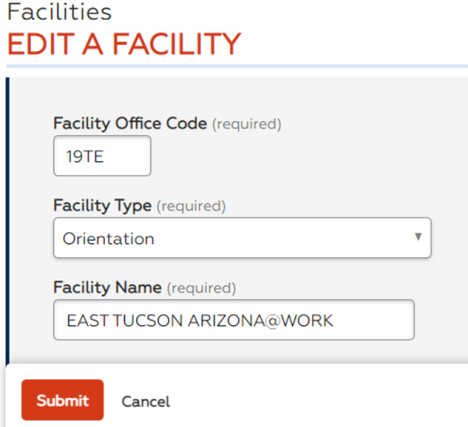
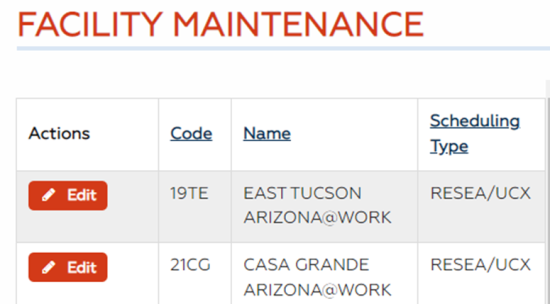
- Click Edit for the facility you want to view or edit.
- Edit the office information and click Save.
Add a Facility
- Click Add. The New Facility page displays.
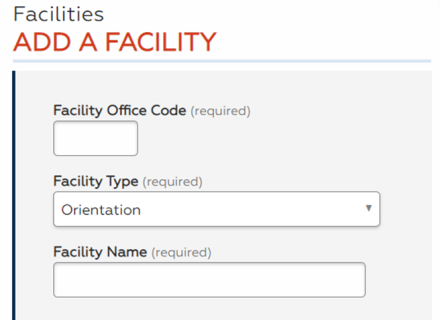
- Provide the following information:
- Facility Office Code: (Text) Type the office code (this is determined by UI).
- Orientation Facility Type: (Drop-down) Defaults to Orientation. No other option is available.
- Facility Name: (Text) Type the name of the facility (e.g., Sierra Vista Arizona@Work)
- Address Line 1: (Text) Type the facility's street address.
- Address Line 2: (Text) Type additional information for the facility address, such as suite number.
- City: (Text); Type the city in which the facility is located.
- State: (Text); Type the state in which the facility is located.
- Zip Code: (Text); Type the ZIP code in which the facility is located.
- County: (Drop-down); Select the county in which the facility is located.
- Office Phone: (Text); Type the office phone number.
- Alternate Phone: (Text); Type an alternate contact number.
- Office Fax: (Text); Type the fax number of the facility.
- Staff Contact Information: (Text); Type the name of the staff who is the facility's designated contact.
- Staff Requesting Change: (Text); Type the name of the staff who is adding the facility.
- Contact Number: (Text); Type the phone number of the staff who is adding the facility.
- Email: (Text); Type the email address of the staff who is adding the facility.
- One Stop: (Drop-down); Defaults to Yes. Select No if the facility is not designated as a One-Stop Career Center.
- Facility Status: (Drop-down); Defaults to Active. Select Disabled to remove the facility from the facilities available for orientation scheduling.
- Office Type: (Drop-down); Select RESEA, UCX (Military Unemployment Claims), or RESEA/UCX.
For Arizona and Idaho, there is an additional option that allows you to configure the time setting for the facility:
- For Arizona, select whether the facility observes Daylight Savings Time.
- For Idaho, the time zone defaults to Mountain. For facilities in the Pacific time zone, select Pacific from the dropdown.
This additional option does not display for states within a single time zone.
- Click Submit. The new office is added as an orientation facility. You may also click Cancel to discard your changes and return to the Facility Maintenance page.