Staff Account Approval
New staff users cannot access full system functionality until their account is approved. The ability to approve staff accounts is privilege-based and is typically limited to supervisors and directors, depending on your state's policy. Once a staff account has been approved, the user can be granted additional roles without going through the approval process. This means that if you have the privilege to create staff accounts, you can manage the roles of approved staff. As with staff account creation, you can only approve staff accounts that are less than your own role, unless you are a State Director.
Related Links
Approve Staff Account
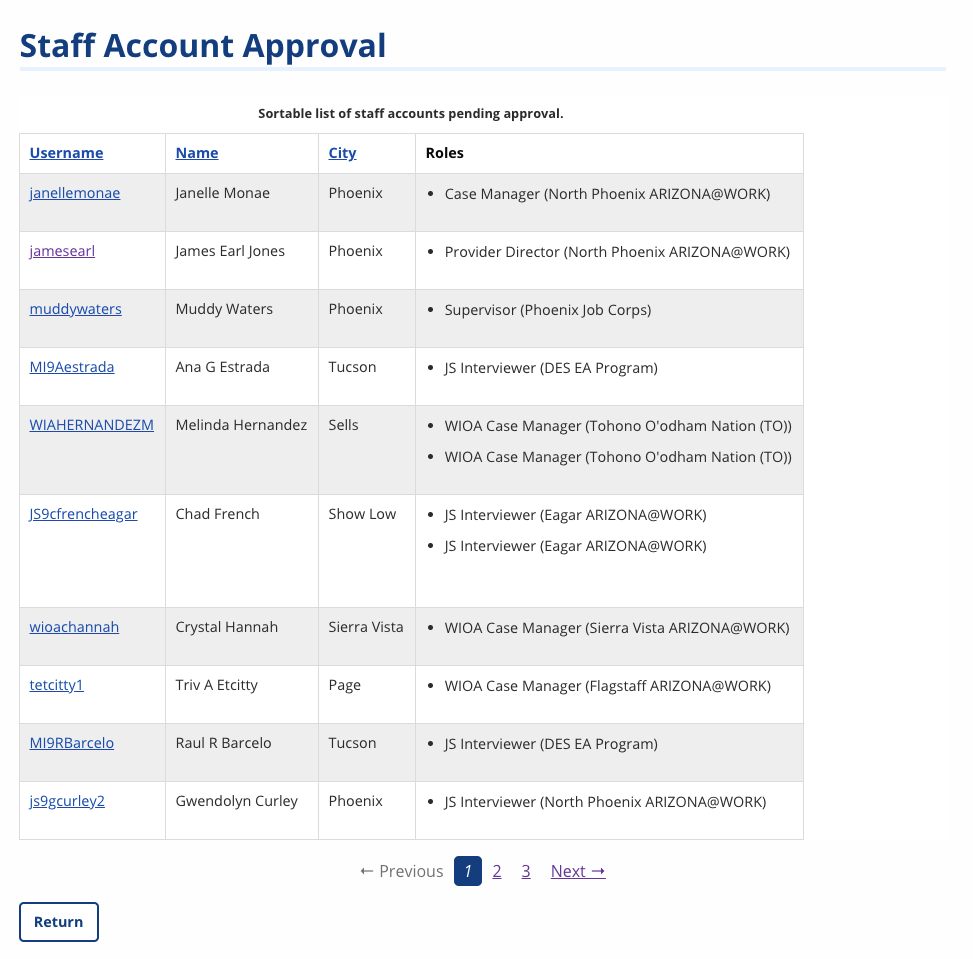
- From the left-hand navigation menu, navigate to Admin Tasks > ServiceLink tab > Staff Account Approval tile. The Staff Account Approval page displays.
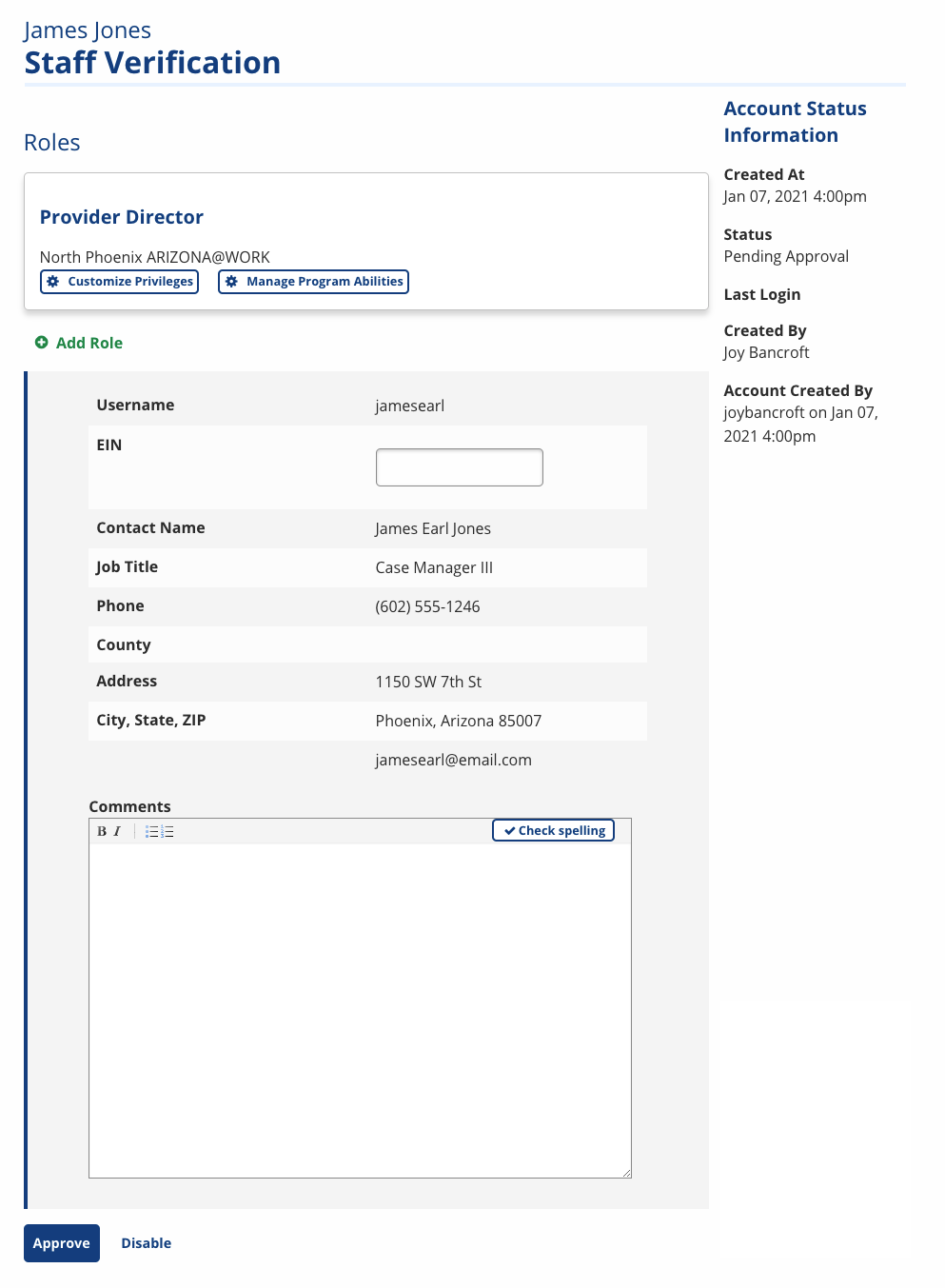
- Select the username of the staff account that needs approval. The Staff Verification page displays, with the following information:
- Roles: The role and office display, with buttons to customize privileges and manage program abilities.
- Account Status Information: Who created the account, the date and time, and the account status.
- Account Information: Basic information about the account displays, including the username, job title, and office info. Enter comments about the account as needed.
- If any information is incorrect, it can be edited from the staff user profile.
- Set the account's privileges and program abilities, as described below. Select Approve when you are ready to approve the account.
Customize Privileges
- Select Customize Privileges. The Customize Privileges page displays.
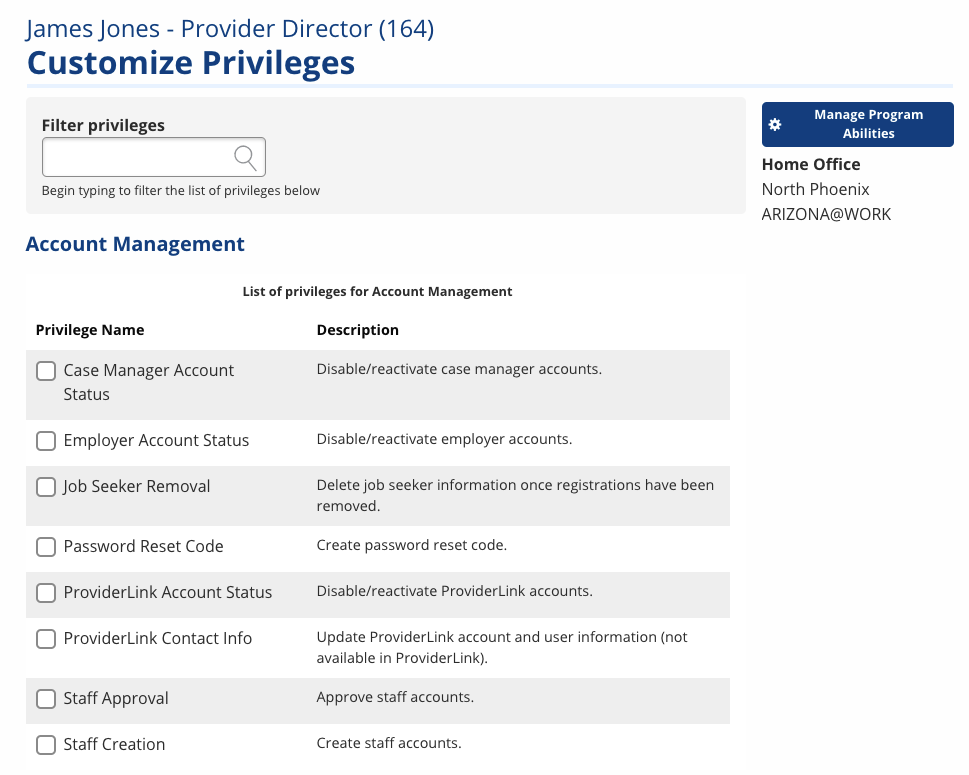
- Select any privileges you wish to grant to the user (see table below). When finished, select Save. The Staff Verification page displays.
- You can filter for a specific privilege if you know the name of one you want to check. Privileges are grouped according to what area of the system they affect. Some privileges are inherently available to supervisors and above. In the table below, privileges inherent to supervisors and above are indicated by an asterisk. States have settings for some aspects of privileges, such as what the lowest level role is who can delete content. Privileges that have further customization are indicated by a plus sign. Those that have a "Y" in the Admin Tasks column indicate the privilege is tied to a specific admin task. Privileges in orange are new to NextGen.
Manage Program Abilities
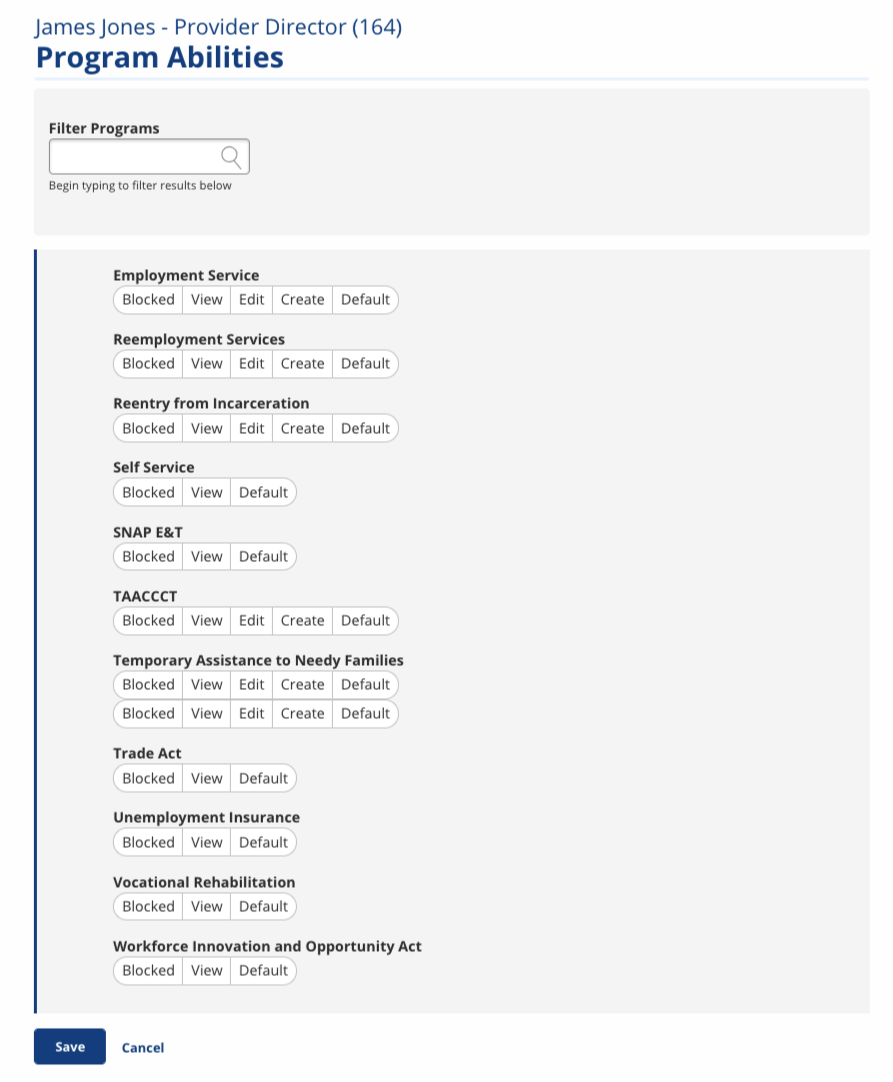
- From the Staff Verification page, select Manage Program Abilities. The Program Abilities page displays.
- Select the permission level you wish the user to have for each program:
- Blocked: The user cannot see or manage any program information.
- View: The user can see but not manage program information.
- Edit: The user can see and edit existing program information, but cannot create new enrollments.
- Create: The user can see and edit existing program information, as well as create new enrollments.
- Default: The user's settings are set to match the office's default values.
- Only active programs display. The levels of permission that display for each program depend on the program settings at the office and region level.
- Select Save. The Staff Verification page displays.
View/Edit Roles
Once a staff account is approved, anyone with the approval to create or approve staff accounts can create and manage additional roles for the staff (as long as the account they're managing a role less than their own, with the exception of State Directors).
- If a staff account is disabled, the staff role's status does not change.
- Open the User Search. Identify the staff you wish to manage.
- Select Edit Roles. The Roles for [username] page displays.
- Any roles that you have access to manage display with action buttons. If a role does not have an action button, you do not have permission to manage that role based on either your privileges or your office. Remember you cannot manage roles greater than or equal to your own role unless you are a State Director.
- Select the action that you need to take on the account:
- Reactivate: Select to make the role available to the account again.
- Disable: Select to remove access to the role. (Roles can only be disabled, not deleted.)
- Customize: Select to modify the role's privileges or program abilities.
- Add Role: Select to create new role for the account. New roles do not require approval.