Anonymous Self-Service Tracker
An anonymous self-service is a job seeker service that is not captured through the application. For example, if your American Job Center has a Resource Room or computer lab and a job seeker uses their time to make a resume in Word, you can record this service. Staff with the Anonymous Self-Service Tracker privilege can select anonymous self-services to be added to or removed from the Self-Service Tracker for each office.
The services that are available to add are based on the active self-services for Labor Exchange, which are identified in Services Admin.
Related Links
- Self-Service Tracker (recording service counts in your office)
- Services Admin
Add Anonymous Services
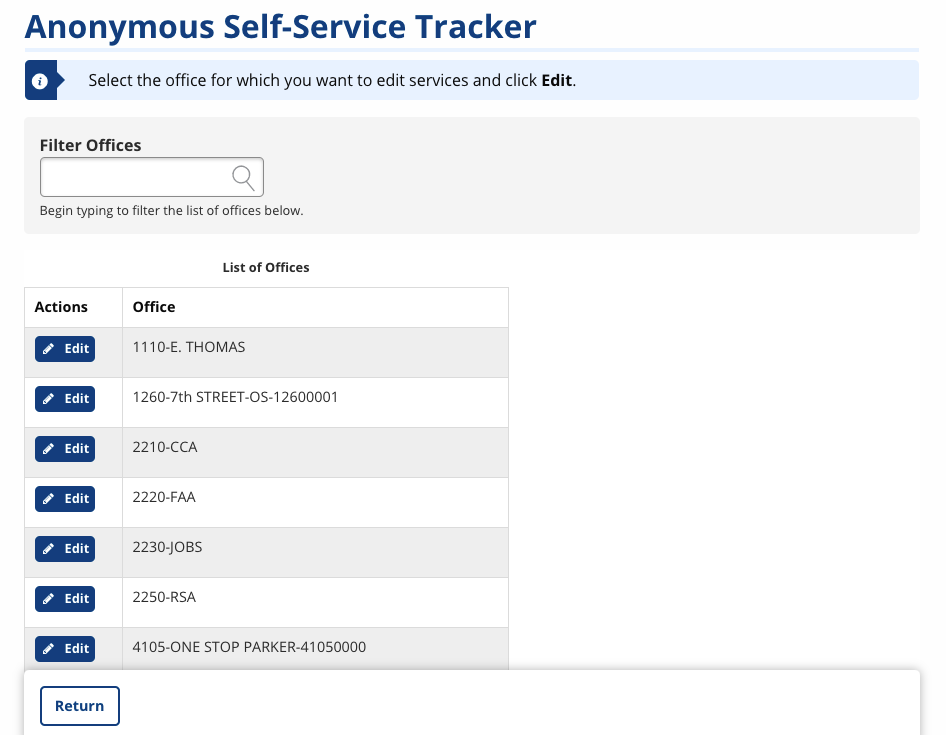
- Navigate to Admin Tasks > Admin tab > Anonymous Self-Service Tracker tile. The Anonymous Self-Service Tracker page displays with a list of offices.
- Use the Filter Offices search to quickly identify a specific office.
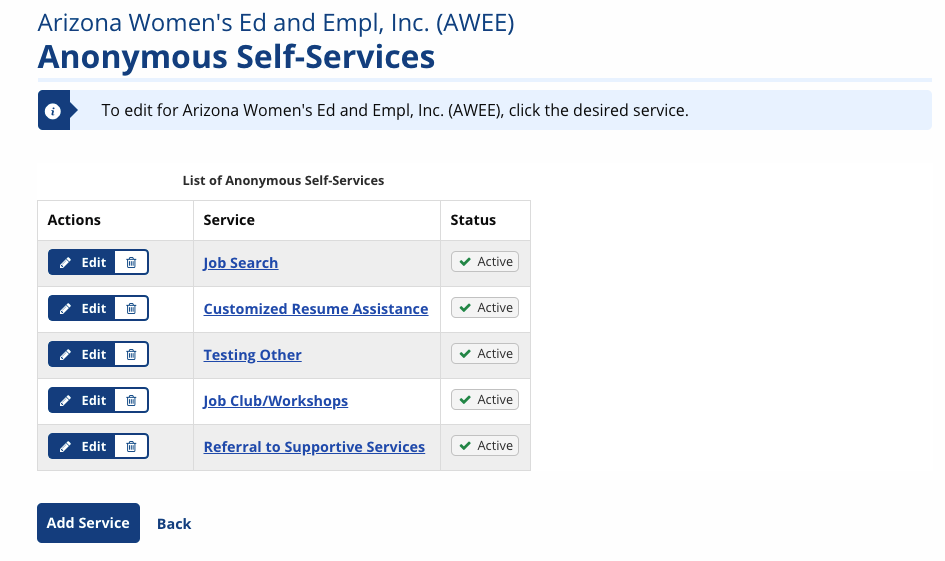
- Select Edit next to the office you wish to manage. The Anonymous Self-Services page for that office displays.
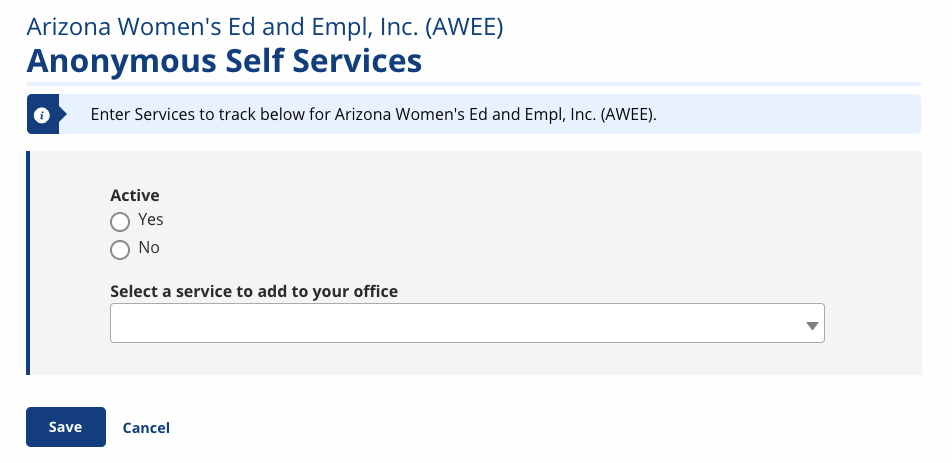
- Select Add Service. The (Add) Anonymous Self-Services page displays.
- Select Yes to make the service active. Select No to add the service to the office, but to prevent it from displaying on the Self Service Tracker.
- Select a service to add to the office.
- Select Save. The Anonymous Self-Services office page displays with the added service.
If the service you want to add does not appear in the list, you must add it through Services Admin.
The service will now be available from the Job Seeker > Self Service Tracker feature.
Edit/Delete Anonymous Services
- Navigate to Admin Tasks > Admin tab > Anonymous Self-Service Tracker tile. The Anonymous Self-Service Tracker page displays with a list of offices.
- Use the Filter Offices search to quickly identify a specific office.
- Select Edit next to the relevant office. The Anonymous Self-Services page for that office displays.
- To edit a service, select the service name or the Edit button. The Anonymous Self-Services status page displays.
- Select No to make the service inactive and select Save.
- To remove a service from the tracker list, select the trashcan icon next to the relevant service name. A confirmation window will display.
- Select Delete. The service is immediately removed from the list.
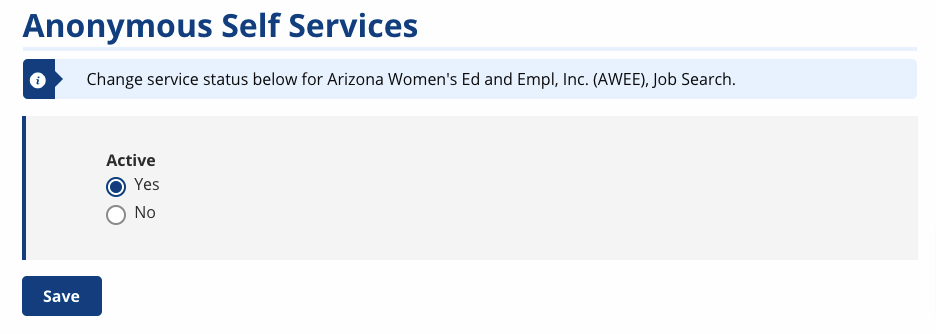
Inactive services do not display on the Self Service Tracker but remain on the office's list of services.