Maintenance Message
Approved staff can enter, view, edit, or disable the message that displays on the splash (home) page. Typically, these messages are related to system maintenance, but the Maintenance Message function can be used for any type of message. Multiple maintenance messages cannot be saved; for a new message, the existing message must be edited.
Add/Edit Maintenance Message
- From the left-hand navigation menu, navigate to Admin Tasks > Admin tab > Maintenance Messages tile.
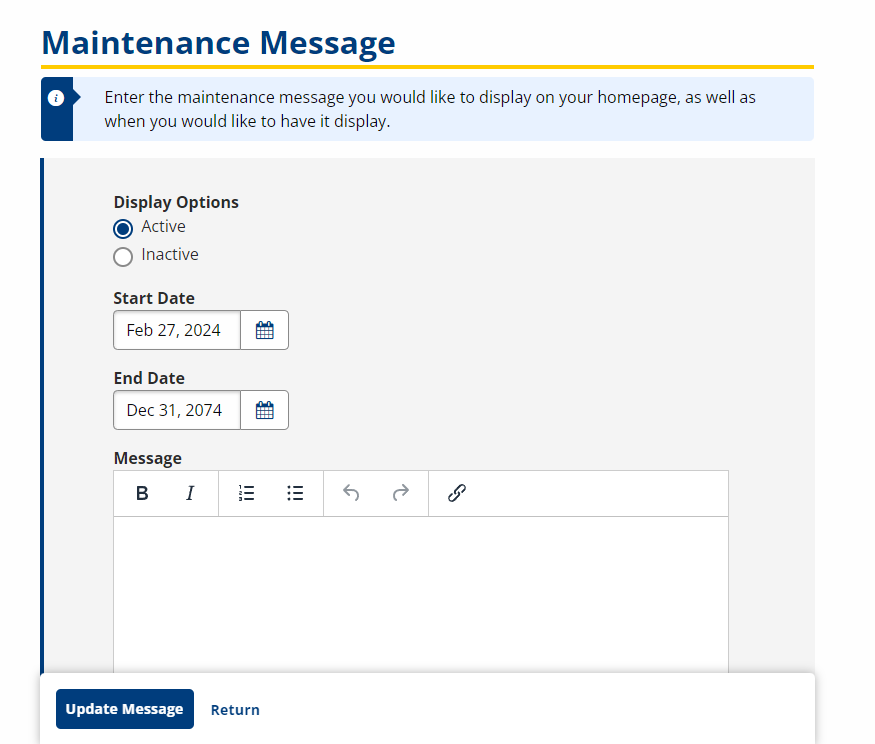
- Edit the information as desired:
- Display Options: Option; Select Active to display the message or Inactive to make the message inactive.
- Start Date: Text/Calendar; Provide the date the message should begin displaying.
- End Date: Text/Calendar; Provide the date the message should stop displaying.
- Maintenance Message: Text; Type the message as it should appear on your system's home page. Basic text formatting is available.
- Click Update Message. The page refreshes with a message in the help text that the status and message have been updated.