My Job Postings
Job postings can be managed by case manager, employer, or office. The office that displays varies with permission level; case managers can view job postings in their own office, whereas supervisors and above can view job postings in areas under their control. The job postings that display are individual postings you have bookmarked.
Navigation
-
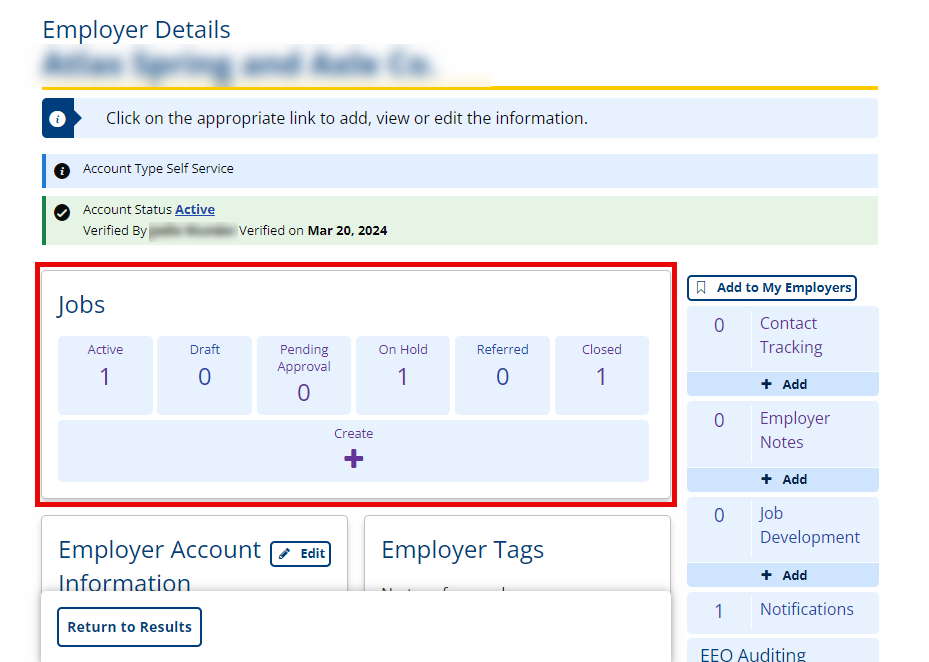
Employers/staff: From the Employer Details page, click the appropriate option in the Jobs tile.
-
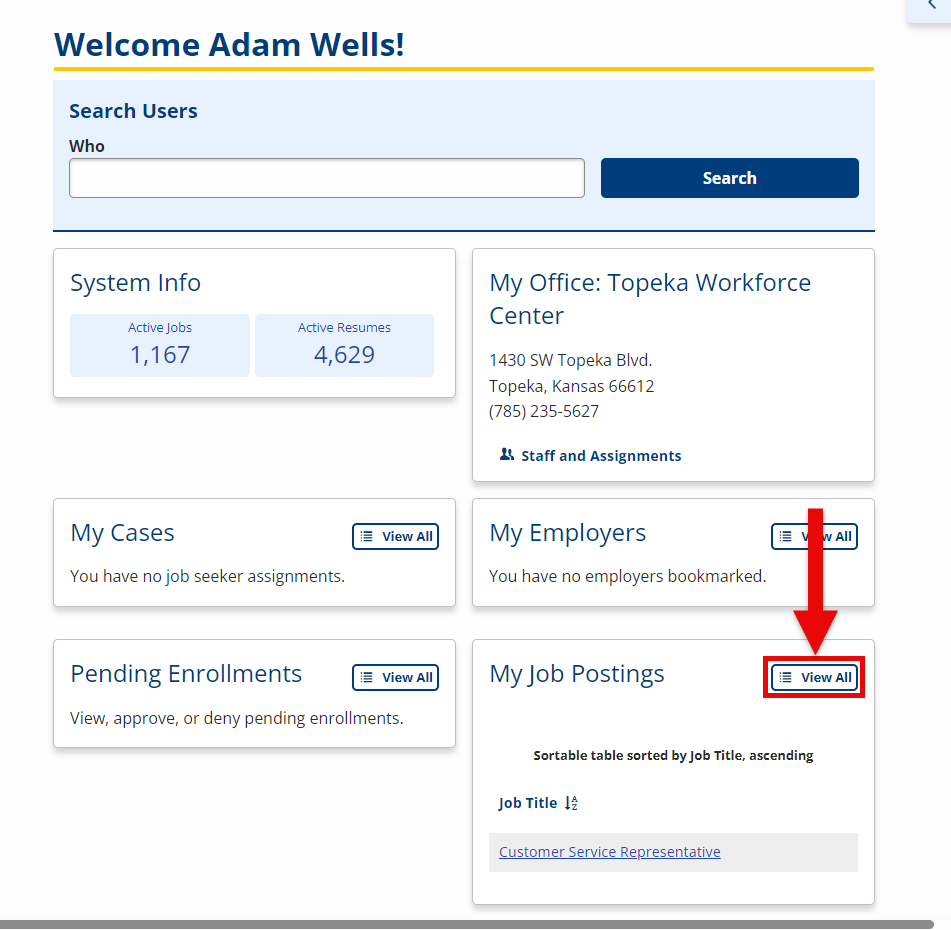
Staff: From the homepage, click View All in the My Job Postings tile.
Active Job Postings
- Navigate to My Job Postings. The My Job Postings page displays.
-
The job listing displays the following items:
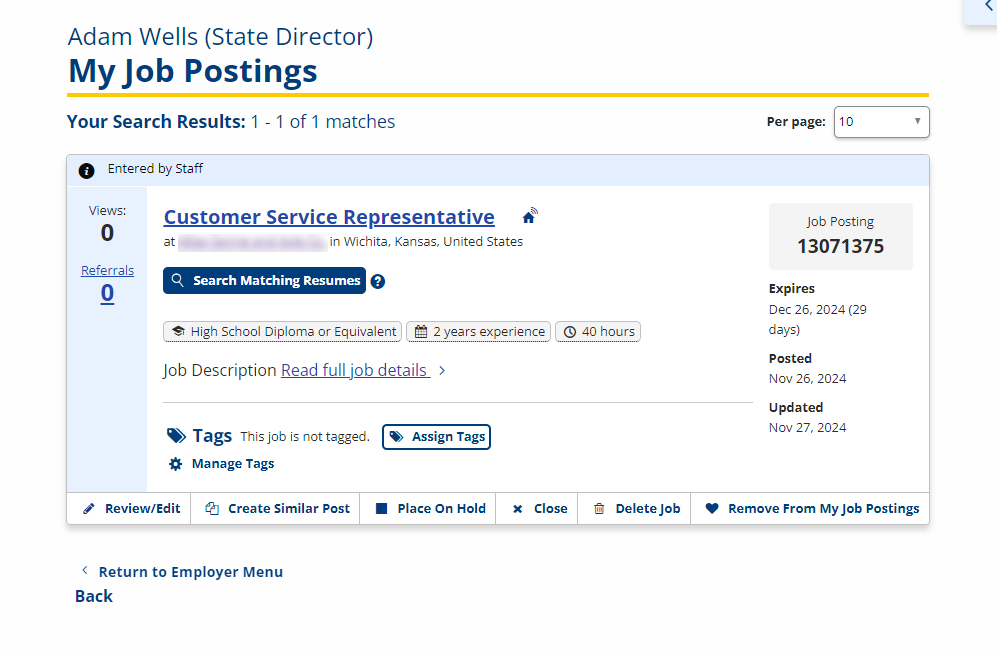
- Entered By: Displays whether the job posting was Self-Service or Staff-Entered.
- Job title: Link to the Job Details.
- Company: Link to the Employer Details.
- Location: City and state for job posting.
- Search Matching Resumes: A link to the Resume Search to search for the resumes of job seekers who might be qualified for this job posting.
- Job Posting: The unique job posting number.
- Expires: Date when the job posting will expire (# of days in parentheses).
- Posted: Date the job was made public.
- Updated: The most recent date the job posting was updated.
- Views: How many times the resume has been viewed by an employer.
- Referrals: Displays the number of referrals that have been made out of the total number of referrals the employer requested for the job posting. Click the link to view the referrals.
- Tags: Displays tag information. Click Assign Tags to add a tag to the posting, if a tag is available in the system. If you have the privilege to create tags (see Admin Tasks > JobLink > Tag Management), click Manage Tags to create a new tag, if needed.
- Review/Edit: Click to review and/or edit the details of the job posting. When the edits are complete, click either Activate to publish the job to the JobLink search engine and to be visible to job seekers depending on the job disclosure level.
- Create Similar Post: Click to create another job posting with similar criteria to the existing posting.
- Place on Hold: Click to place the job posting on hold, making it no longer visible to job seekers.
- Close: Click to close the job. Typically done when the job posting has been filled or is no longer relevant.
- Delete Job: Click to delete the job. The job will no longer display and can only be retrieved by calling America's Job Center staff.
- Remove From My Job Postings: Click to remove the job posting from your list of My Job Postings.