Group Activities
A group activity is a service. When job seekers are scheduled for a group activity, the activity (service) is added to the job seeker's Service and Training Plan as a scheduled service, if the job seeker has the appropriate open enrollment. Job Seekers who do not have an appropriate enrollment can be scheduled, but the enrollment and service must be entered manually.
The estimated beginning and ending dates are the date of the activity for which the job seeker is scheduled, and the status is Scheduled.
After the activity, the status is updated using the Group Activity function. When the status is updated through Group Activity, the service on the Service and Training Plan is updated and the actual beginning date and actual ending date are updated to the date of the activity, as appropriate for the status selected. If the status is Completed, the actual begin and end dates are populated; if the status is Failed to Report, they are not.
One-Time Group Activities
If a one-time service is provided to a large group of job seekers, Group Activity can be used to enter the service for each job seeker without the need to access each job seeker record individually. Type the Group Activity for a limited date range. Schedule the job seekers, and then update the status. The Group Activity can be added after the activity has occurred. For example, if staff facilitated a workshop yesterday, the Group Activity can be added, job seekers scheduled, and job seekers updated today.
RES and REA Group Services
The Group Activity function is designed to generate a group activity if, using AJL interfaces, more than one job seeker is called in for RES or REA services at the same specific date and time. This allows the status of the services to be updated on a single page without accessing each job seeker record.
Navigation
From the left-hand navigation menu, navigate to Job Seeker, then select the Group Activity Menu tile.
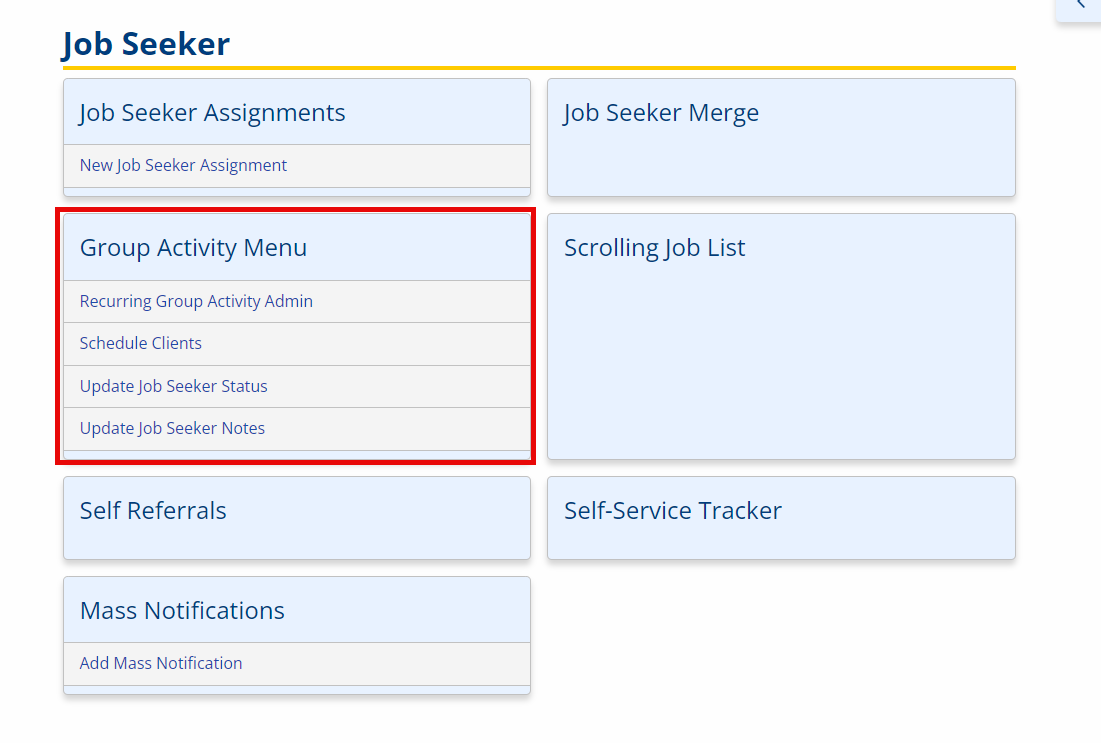
Group Activity Menu
- Recurring Group Activity Admin: Provides functions for viewing, editing, and deleting group activities.
- Schedule Clients: Displays group activities currently scheduled for the user's office, with a Search Activities button to search for activities in other offices.
- Update Job Seeker Status: Displays the Scheduled Status Services: list of group activities with job seekers whose service status has not yet been updated. The activities continue to display until all job seekers are updated.
- Update Job Seeker Notes: Allows you to add an enrollment note for the job seekers signed up for an activity.
Recurring Group Activity Admin
- Navigate to Job Seeker > Group Activity > Recurring Group Activity Admin to display the Recurring Group Activity page for the user's office. Click the column heading to sort the activities by the selected column.
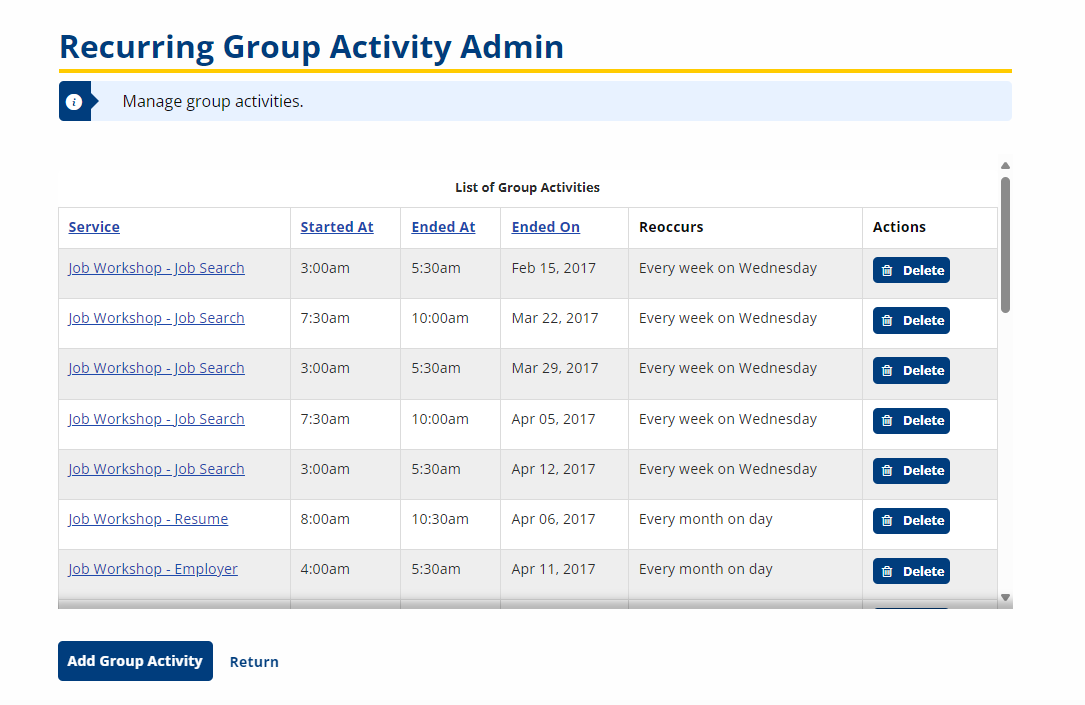
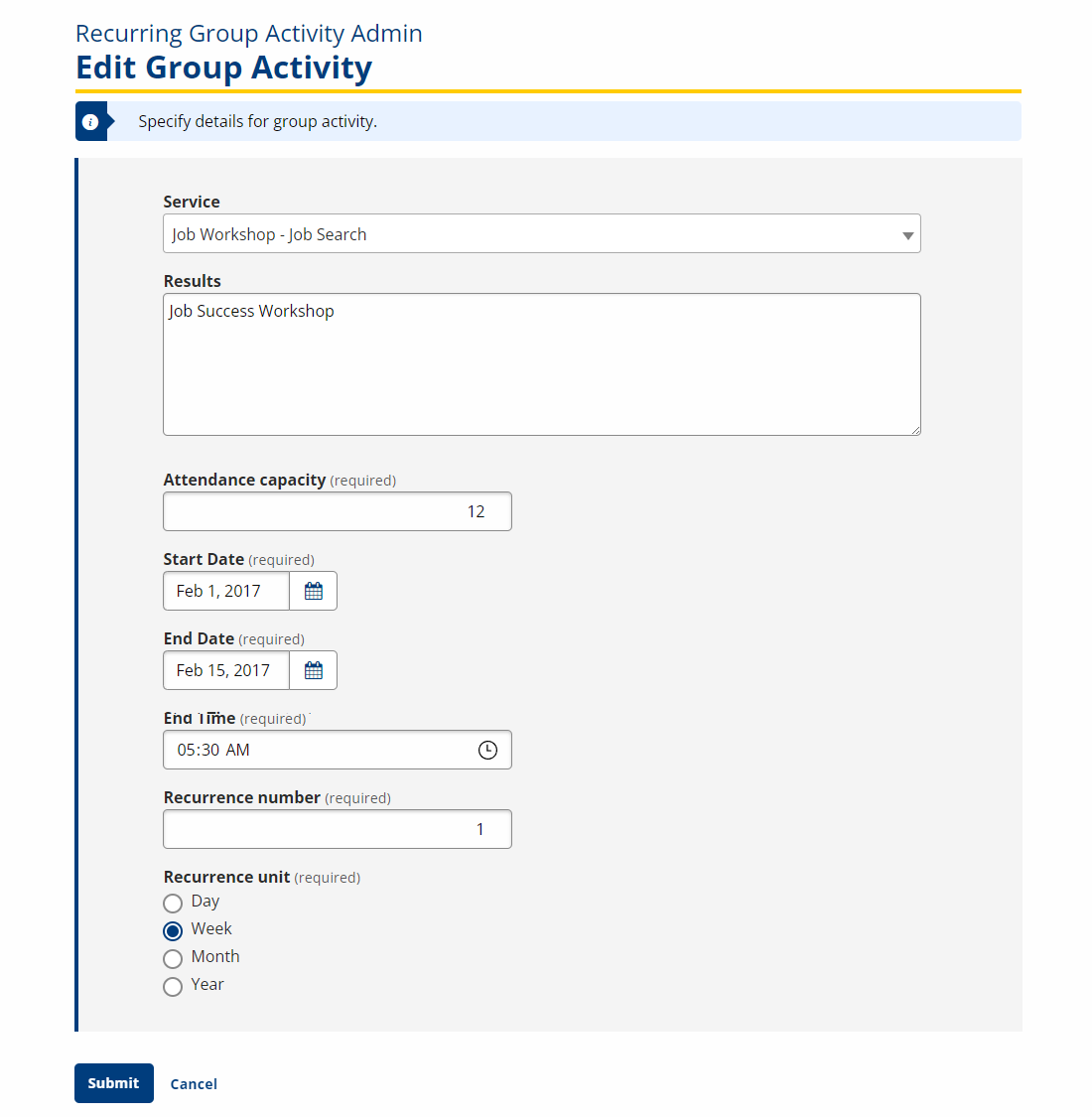
- Click a link in the Service column to edit a recurring group activity. The Group Activity page displays with the information for the activity. Make changes as needed and click Submit to save changes or Cancel to return without saving changes.
- Click the Delete button in the Actions column to delete a group activity. A confirmation page displays to confirm the deletion. Click the Delete button to delete or the Cancel button to return without deleting. Group Activities cannot be edited or deleted if job seekers are scheduled.
- Click the Return button to return to the Group Activity Menu.
Add New Recurring Group Activity
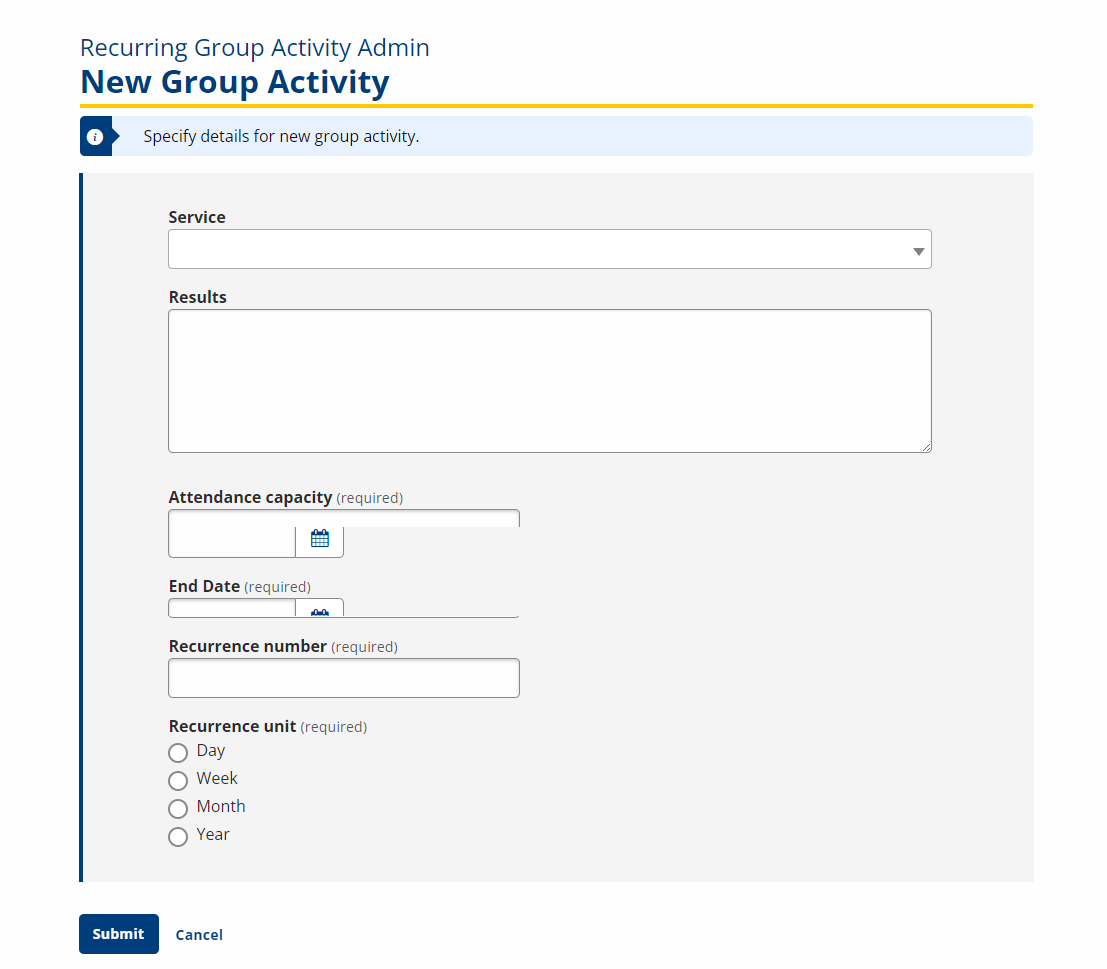
- Navigate to the Recurring Activities page. Click Add Group Activity. The New Group Activity page displays.
-
Type the information for the activity according to the instructions.
- Service: Select a service from the drop-down. Which services display in the drop-down is determined by the AJL administrator in ServiceLink > Services Admin. If you do not see the service needed to set up a recurring group activity, contact your AJL administrator.
- Station Desk: (Defaults to current case manager but is editable.) Select the case manager who will provide the service. Multiple case managers may provide the service or the case manager may not be known at this time. The case manager can be modified when job seekers are updated so that the activity (service) is added to the job seeker's Service and Training Plan with the appropriate case manager documented.
- Results: Type any notes about this activity.
- Attendance Capacity: Type the maximum number of job seekers who can be scheduled for the activity.
- Start Date: Select the start date for the activity from the calendar or type the date in mm/dd/yyyy format. The start date can be, for example, the first day of a month, regardless of the day of the week selected for the activity. AJL determines the specific dates from the entries for the time period.
- End Date: Select the end date for the activity from the calendar or type the date in mm/dd/yyyy format. The end date can be, for example, the last day of the month, regardless of the day of the week selected for the activity. AJL determines the specific dates from the entries for the time period.
- Start Time: Type the start time for this activity.
- End Time: Type the end time for this activity.
- Recurrence number: Type the number of days/weeks/months/years for the recurrence.
- Recurrence unit: Select the unit to be used with the Recurrence Number to determine the activity's recurrence.
- Click Submit to save the information and continue to add the activity. The Group Activity [Dates] page displays with the dates of the activity, based on selections made for the recurring period on the previous page. Click Cancel to return without saving the information. The activity is not added.
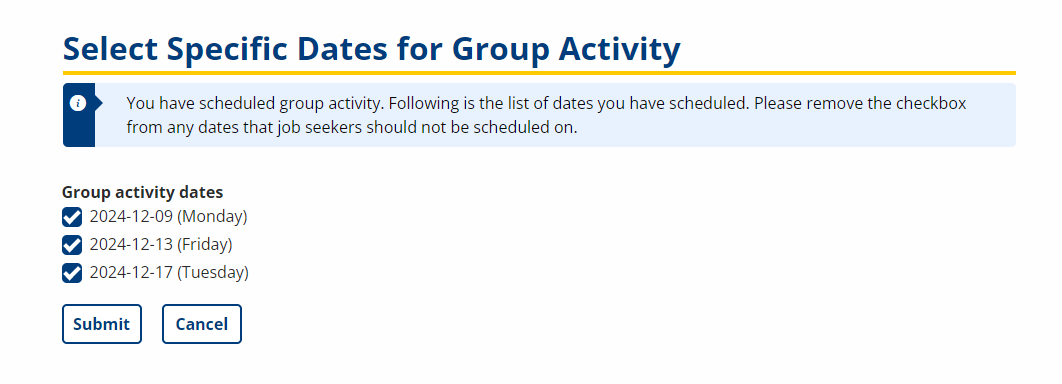
- Each date has a checkbox and all checkboxes are defaulted to be checked. Review the dates carefully. Uncheck any dates on which the activity will not occur (e.g., holidays). Click Submit to save the information and add the activity. Click Cancel to return without saving any information. The activity is not added.
Schedule Clients
- Navigate to Job Seeker > Group Activity > Schedule Clients. The Schedule Clients page displays. The page displays activities scheduled by the user's office.
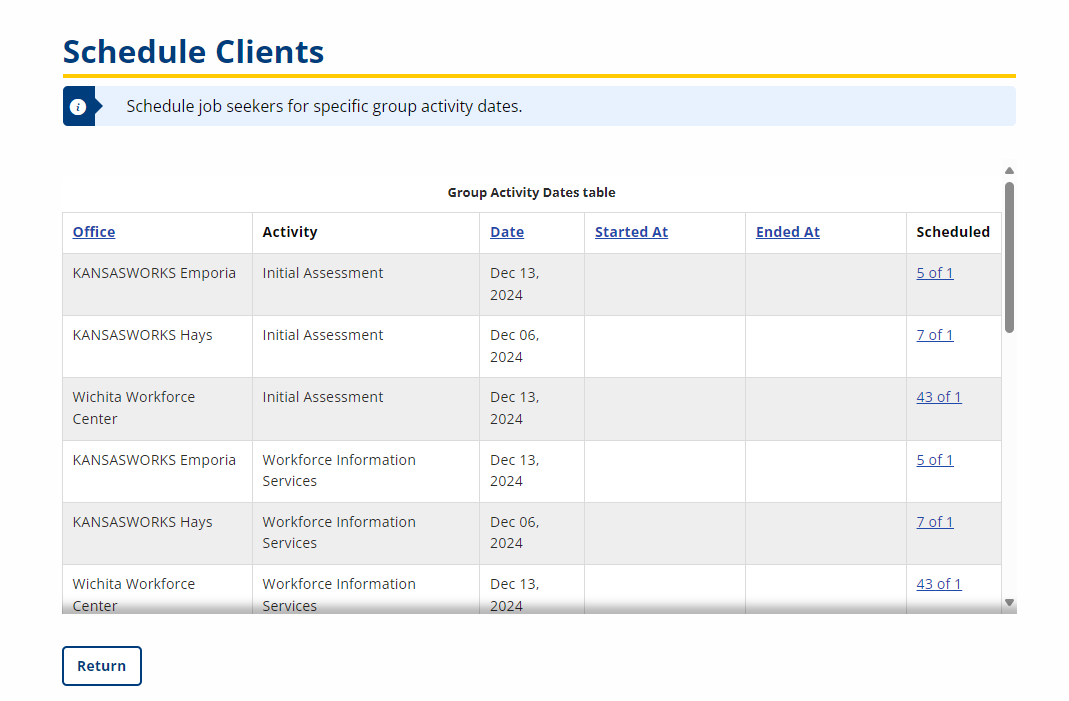
- The Scheduled column displays the number scheduled of the maximum number who can be scheduled (e.g., 1 of 3. The number scheduled is one, and the maximum number is three).
- Click a link in the Scheduled column. The Schedule Job Seekers for Group Activity page displays. Type the information for the activity according to the instructions below and click Submit:
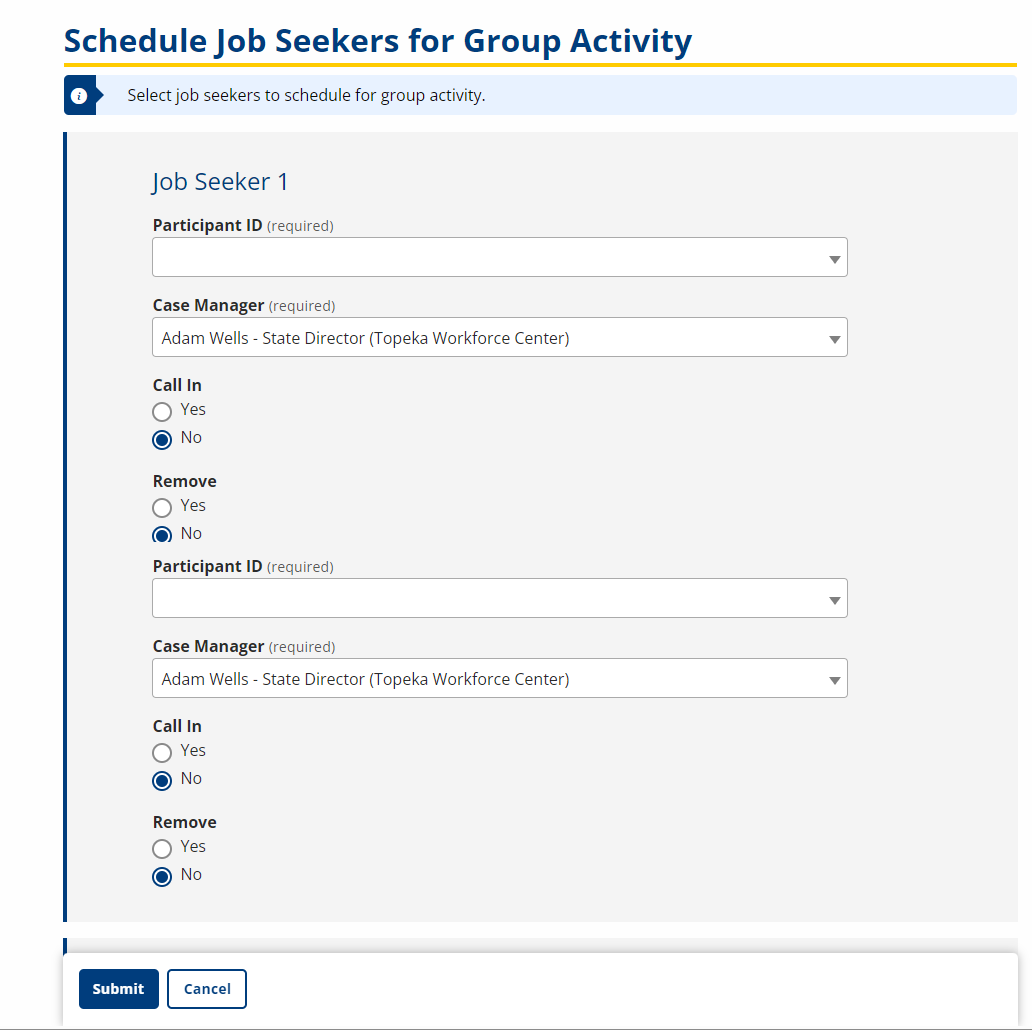
- Participant ID: Type the job seeker's Participant ID.
- Case Manager: Select the case manager Office and Station Desk from the drop-down. The drop-down defaults to the current case manager but is editable.
- Call In? Select Yes or No. See the Job Seeker Call-Ins topic for instructions for Job Seeker Call-In.
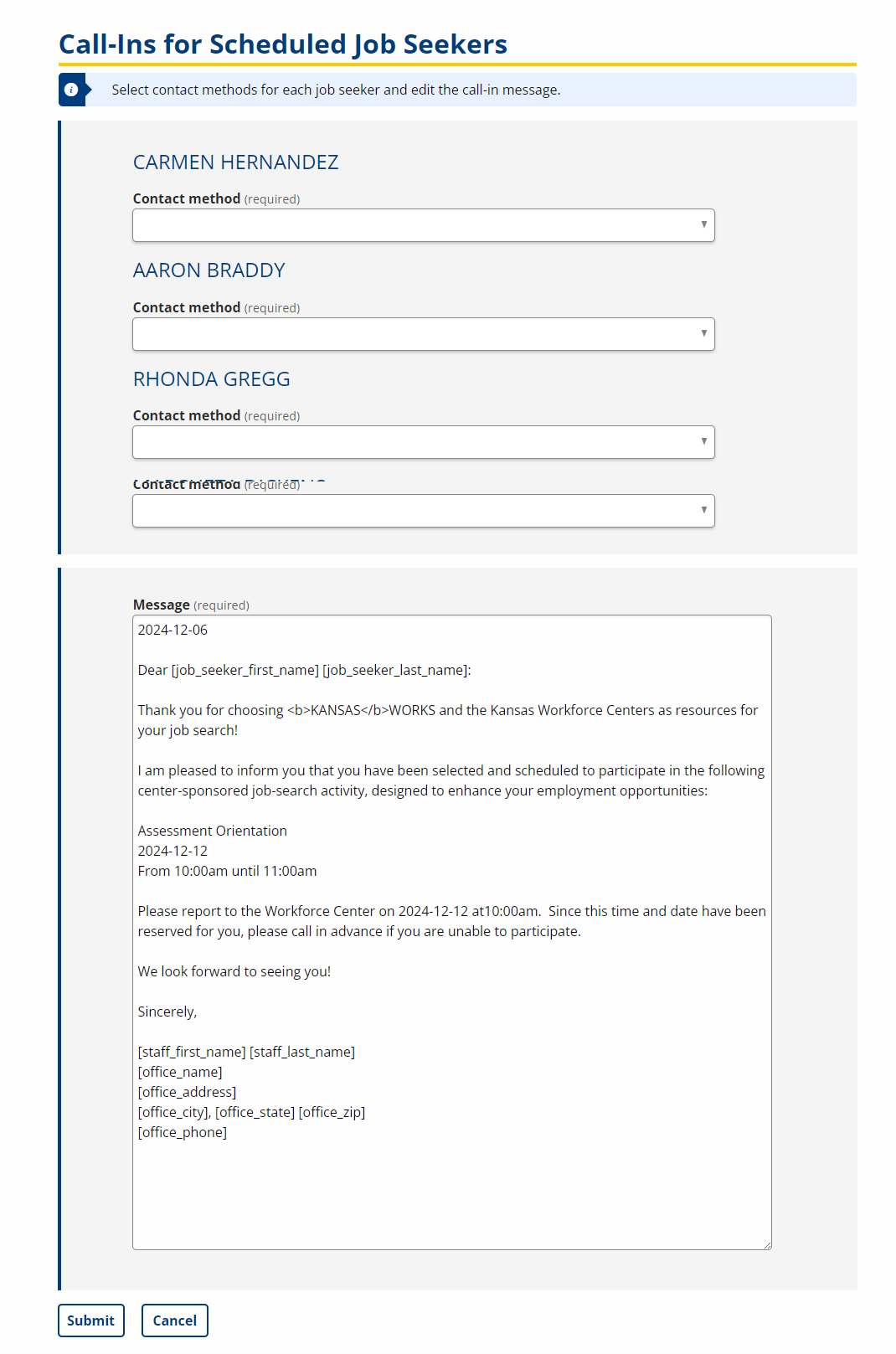
- If call-ins were selected for any job seekers, the Call-Ins for Scheduled Job Seekers page displays. Select the contact methods for each job seeker and edit the call-in message as needed. Click Submit.
Update Job Seeker Status
- Navigate to Job Seeker > Group Activity > Update Job Seeker Status. The Update Job Seeker Status page displays.
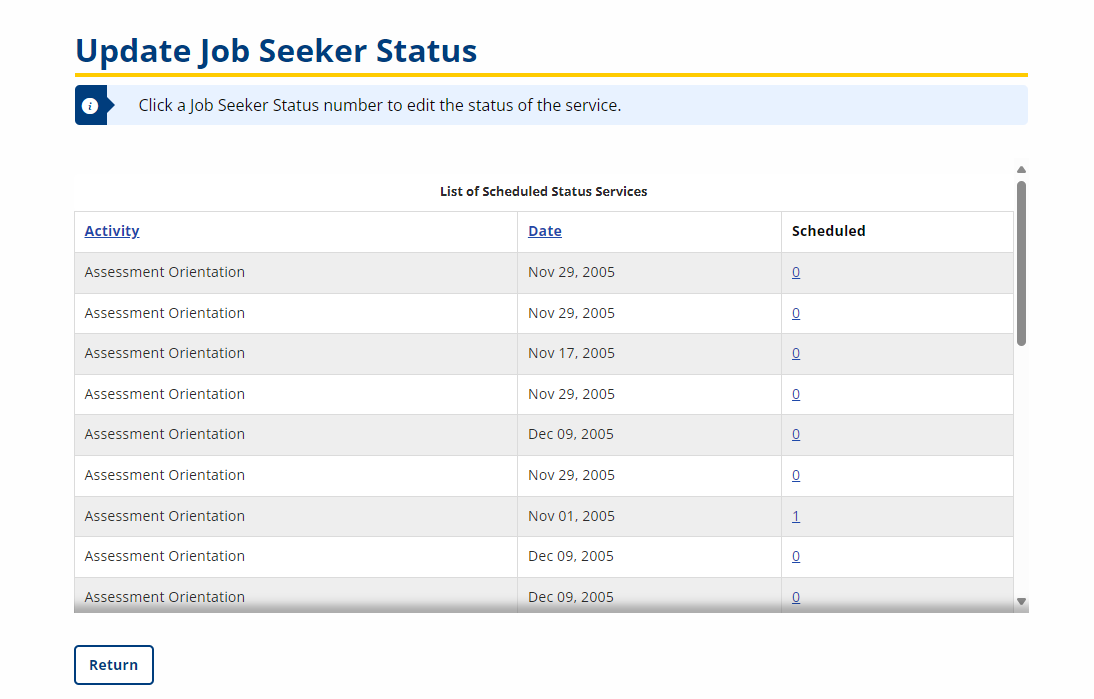
- Click a link in the Scheduled column. The Edit Status of Service page displays. Type the information to update the status of the service and click Update Status.
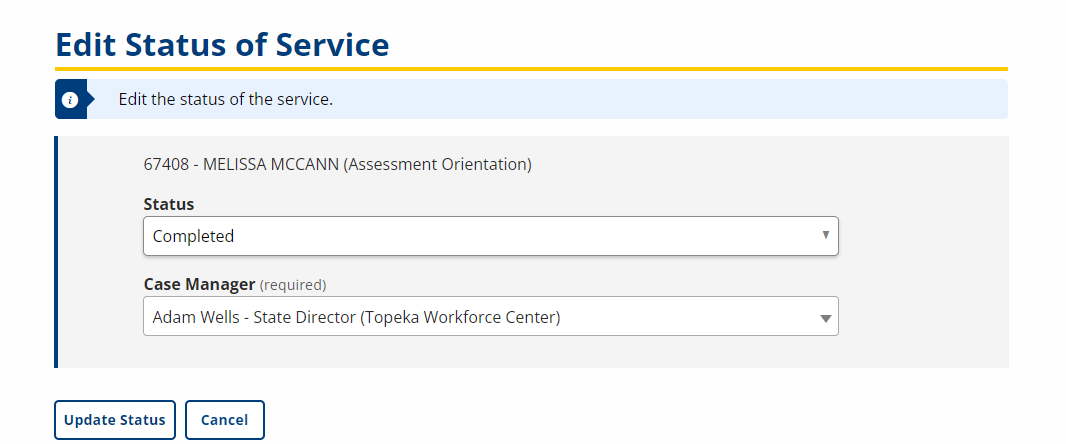
- The Status drop-down defaults to Scheduled, which is the current status of the service. The Case Manager defaults to the case manager who scheduled the job seeker, but is editable.
- The Status Confirmation page displays. Review the information. If correct, click Confirm to save the updates and return. If not, click Cancel to return to the [Activity] page and make edits.
Update Job Seeker Notes
-
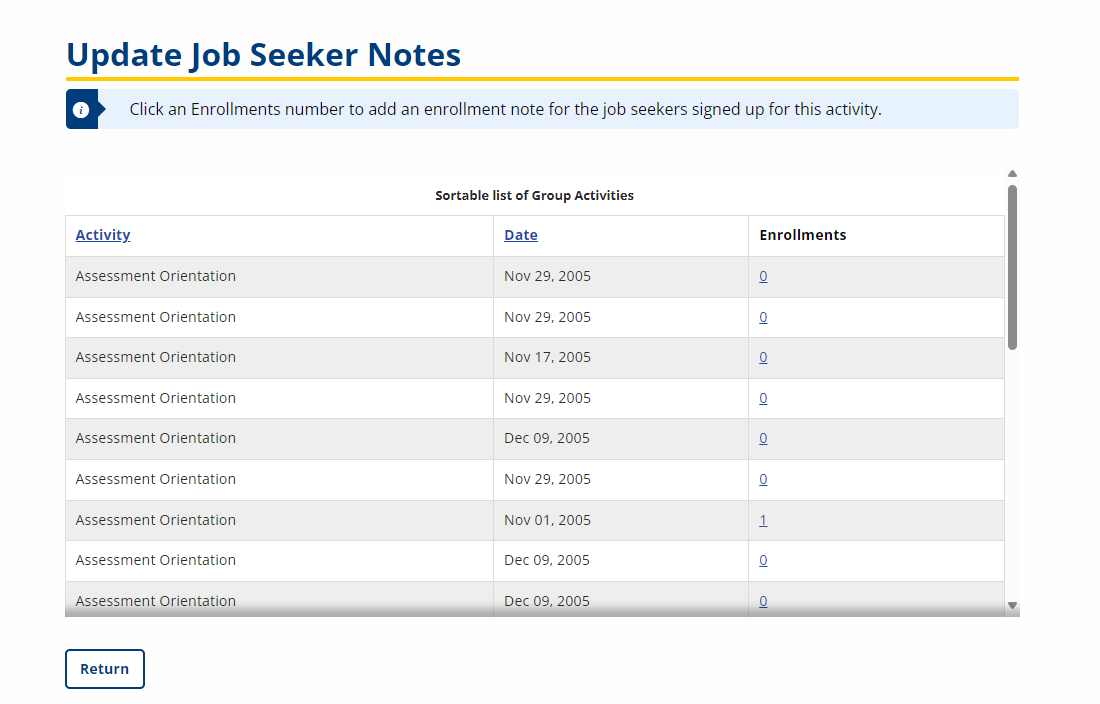
Navigate to Job Seeker > Group Activity > Update Job Seeker Notes. The Update Job Seeker Notes page displays.
-
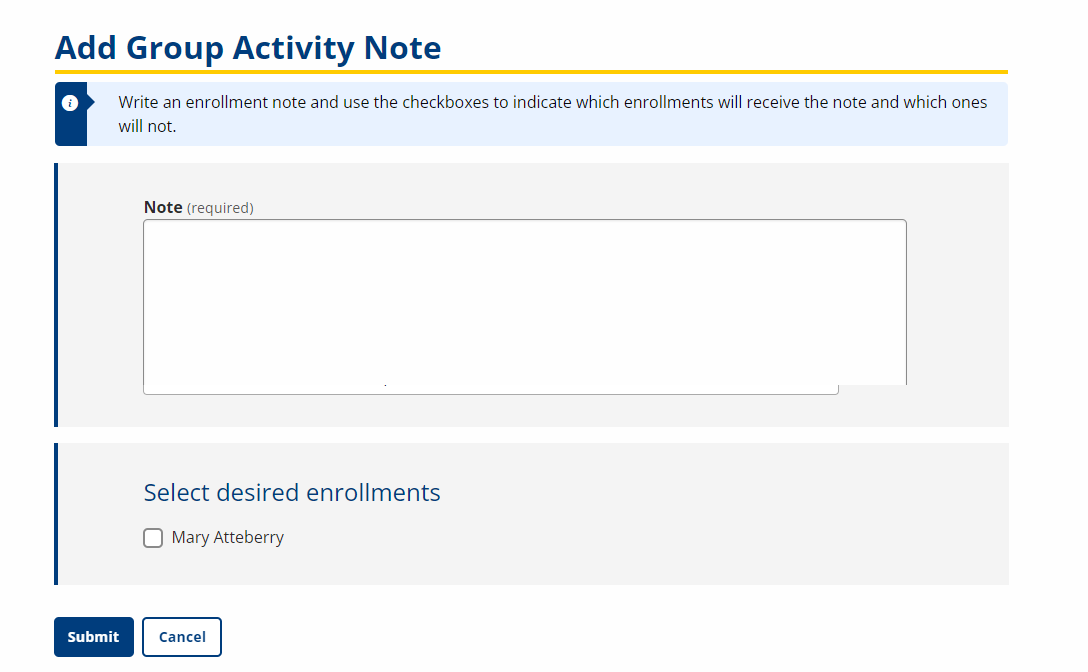
To add an enrollment note for the job seekers signed up for an activity, click the link in the Enrollments column. The Add Group Activity Note page displays.
-
Note: Type the note text.
-
Role user: Defaults to your name but can be changed.
-
Select desired enrollments: Check each job seeker enrolled in this activity for whom the note applies.
-
Click Submit.
-