Job Search
The Job Search is designed to search all job postings by keyword(s) and location/radius, with the ability to refine results by adding filters. A search can be as simple or detailed as desired, beginning with a basic keyword and location search, or by choosing from a wide variety of filters. The search filters and results are on the same page, so you can see immediately how your results are affected when you add or remove a filter. Search results are sorted by relevance (best match), which means that the results most closely matching your search criteria will display first. When searching by keyword(s), any jobs that have the keywords in the job title or occupation title will display at the top of the results. Below that will display jobs containing the keywords anywhere in the job order. If you aren’t satisfied with your results, try editing your keyword.
When you search by Keyword, beneath each job result, a list of the keyword matches display (e.g., Secretary found in Job Description, Occupation Title, Job Description). This keyword matching feature is "fuzzy," meaning it will return results with words that are similar in spelling to the word you entered if it cannot find an exact match (e.g., searching for "cook" might result in a keyword match to "look" or "looking."
Conduct Job Search
- Select Job Search in your left-hand navigation menu. When no parameters are entered and no filters are chosen, all active job postings in the system display.
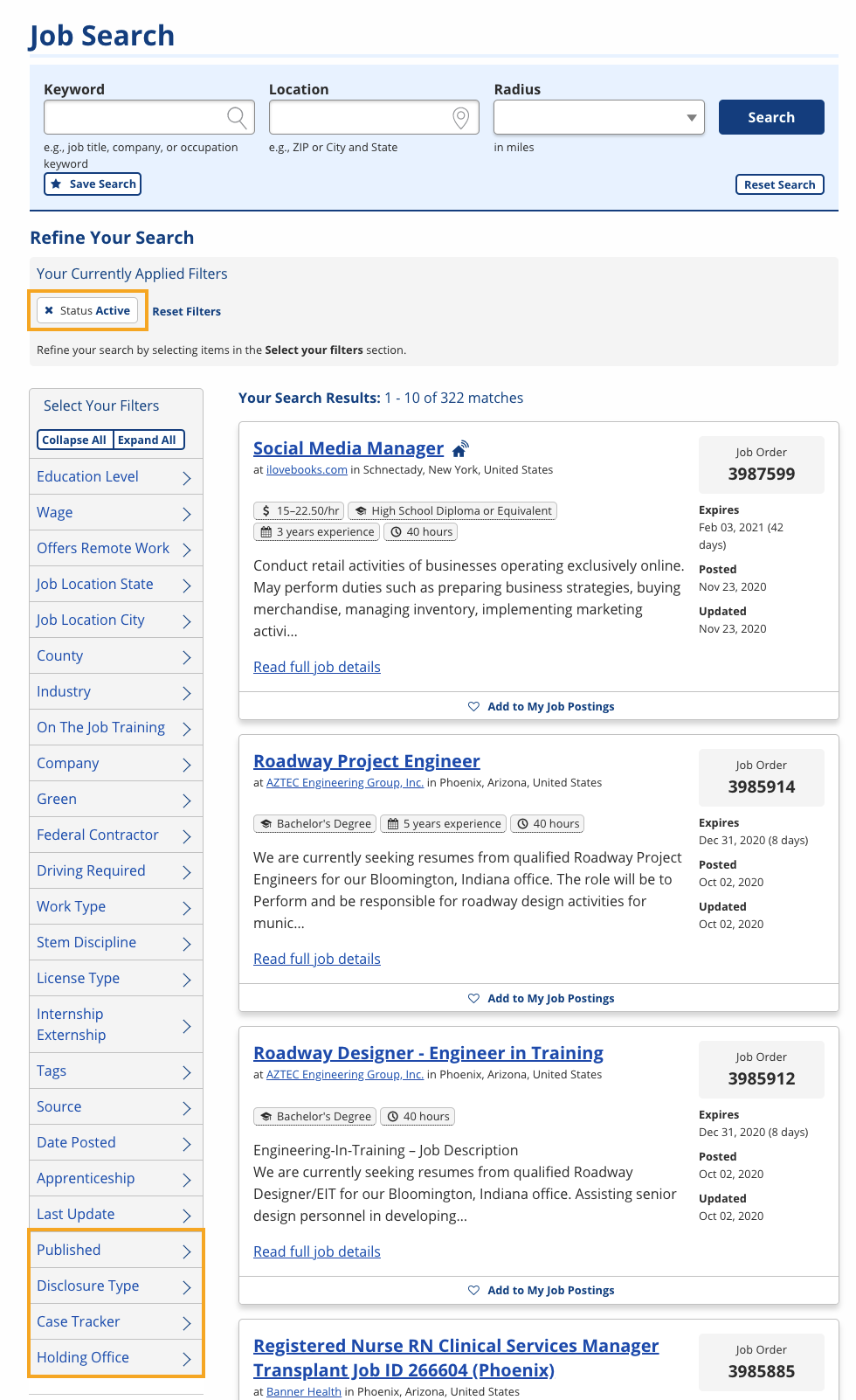
- Enter any of the following search parameters:
- Keyword: Enter a keyword related to the job sought. A drop-down list provides suggestions to narrow your search. You can select an option in the list or continue typing.
- Location: Enter a city and state or ZIP to specify a desired location.
- Radius: When you specify a location, you must also specify a radius (the distance in miles around which to search that location). This distance should reflect the distance the Job Seeker is willing to commute or relocate.
- Further narrow the search by applying filters, as described below. Filters with an asterisk indicate that they are only available in the staff Job Search.
To expand a category of filters, select the category. The number next to each filter within that category indicates the number of results you’ll get if you add the filter. A filter will only display for selection if there are results available for that filter. For example, if there are no jobs making $15.00 or more, you will not see the $15.00 or more filter.
To add a filter to your search criteria, select it. Your search results will automatically update to match the filter you added. You can see all of the filters you’ve added in the Your Currently Applied Filters section. To remove a filter and widen your search, select the x next to the filter. By default, the Status: Active filter is already selected.
- Education Level: Search by the minimum education level required for the job. When "Associate's Degree" (for example) is selected, jobs requiring an Associate's Degree or less will be included in the results. Options include: Some High School or Less; High School Diploma or Equivalent; Vocational Certification or Credential; Some College; Associate's Degree; Bachelor's Degree; Master's Degree; Other Professional Degree; Ph.D.; MD, OD, or Related; DDS, DMD, or Related; or JD.
- Wage: Search by minimum preferred hourly wage (in $5.00 increments, beginning at $0.00 or more).
- Offers Remote Work: Search for jobs that offer the opportunity of working remotely.
- Job Location – State: Search for jobs within a state.
- Job Location – City: Search for jobs within a city.
- County: Search for jobs within a county.
- Industry: Search for jobs by industry. Industry is determined by the company's North American Industry Classification System (NAICS) code.
- On the Job Training: Search for jobs that provide on-the-job training.
- Company: Search for a specific company's postings. The company must have 5 or more active job postings that match the current search criteria to appear.
- Green: Search for jobs that the company has indicated are green.
- Federal Contractor: Search for jobs by whether the employer is a federal contractor.
- Driving Required: Search for jobs by whether driving is required as part of job requirements.
- Work Type: Search for jobs by work type (Full Time, Full or Part Time, Part Time, See Job Description).
- STEM Discipline: Search for jobs by a Science Technology Engineering or Mathematics discipline. The STEM discipline corresponds to the job's O*NET occupation.
- License Type: Search for jobs that require the job seeker to hold a specific type of driver's license (Class A, B, or C).
- Internship Externship: Search for jobs that the company has indicated are an internship or externship.
- Tags: Search for jobs that have been associated with a specific event, initiative, or partnership.
- Source: Search for jobs that are internal (entered manually into JobLink by staff or employers) or external, which have been imported from other sources, such as batch jobs and jobs for NLx.
- Date Posted: Search by the date the job was posted (Today, Yesterday, 1 week, 2 weeks, 1 month).
- Apprenticeship: Search by whether the job posting is an apprenticeship. Registered apprenticeship positions will display a red RA next to the job posting title.
- Last Update: Search by the date the job was last updated (Today, Yesterday, 1 week, 2 weeks, 1 month).
- Created By API: Search by whether the job posting was created via the Jobs API (Yes, No)
- * Status: Search for jobs in any status. The default search results include the Active filter; remove this filter by selecting the x next to Active in the Your Currently Applied Filters section. See the Job Posting Overview section for more information about job posting status. Options for status include: Active, Closed, Deleted, Draft, On Hold, Pending Staff Approval, or Referred.
- * Published: Search for jobs according to their published status (Already Published or Not Published Yet). A job’s posting date and publish date may be different. If a job is posted (entered), but has not yet reached its publish date, it will not display to the public in search results, but will display to staff if the Not Published Yet filter is selected.
- * Disclosure Type: Search for jobs according to their public availability. Options include:
- Private: Job does not display to job seekers but is available to workforce staff.
- Limited: Job seekers will see only contact information that the employer selects (Primary Location and Primary Contact info are suppressed).
- Public: Job seekers will see all job and contact information.
- * Case Manager: Search for jobs according to the case manager assigned to the posting.
- * Holding Office: Search for jobs according to the Holding Office assigned to the posting.
Job Search Results
The search results provide the following information:
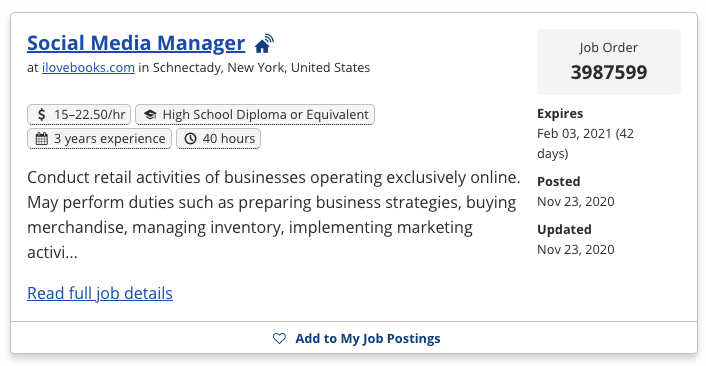
- Job Status: Displays the status of the job posting, with the exception of Active jobs.
- Job Title: Title of the posting. Links to the full job posting.
- Employer Name: Name of employer, with city and state of primary location. Employer name links to Employer Details for staff.
- Requirement Tags: Display job requirements at a glance, such as the wage range, minimum education, minimum experience, and number of hours per week.
- Job Description Preview: Displays the first few lines of the job description. Select Read full job details to view the full job posting.
- Job Order: The unique job posting number. Those with a "JC" prefix are jobs from NLx.
- Expires: The job posting's expiration date.
- Posted: The date the job was published.
- Updated: The date the job was most recently updated.
- Created By API: Displays "Yes" if the job was created via the Jobs API.
- Add to My Job Postings: Select to bookmark the job for quick access from Employer > My Job Postings.