Employers Pending Response
To view employer accounts that are awaiting information before verification, use to the Employers Pending Response queue. Employers remain in this queue for 30 days. If the account profile or contact information is not updated within 30 days, the account is automatically disabled and removed from the queue. Disabled accounts can still be located and, if necessary, re-enabled using the Admin Employer Search.
View the List
- Click Admin Tasks, then click the JobLink tab. Click the Employer Pending Response tile. The Employers Pending Response page displays to the tab opened.
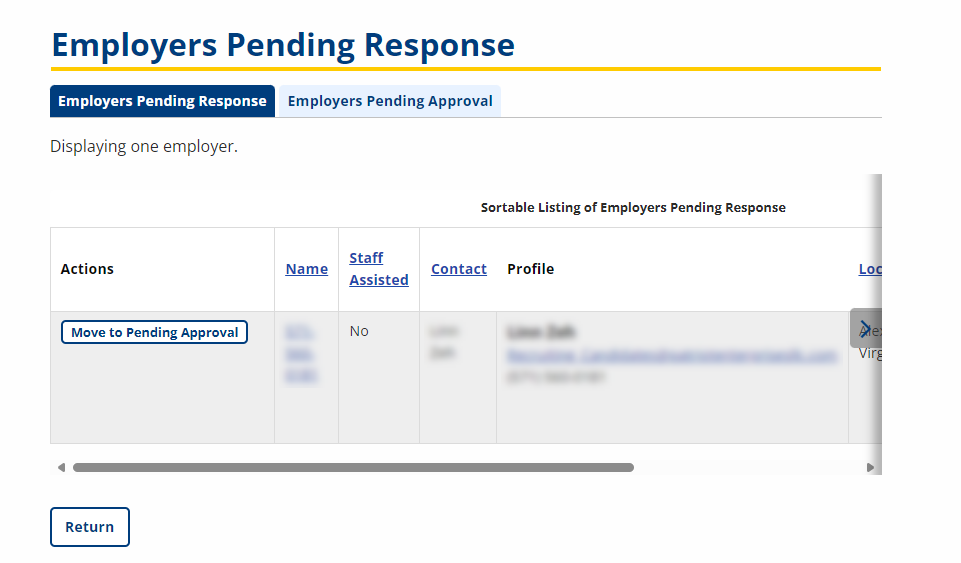
- To view an individual employer, click the company name.
- The following content displays for each employer account:
- Name: Displays the employer name provided in registration.
- Staff Assisted: Indicates whether this account was created with assistance from staff.
- Contact: Displays the contact name provided in the Company Information of employer registration.
- Profile: Displays the name, email address, and phone number provided in the Profile Information of employer registration.
- Location: Displays the employer's primary location.
- Created: Displays the date and time the account was originally created.
- Last Reviewed By: Displays the name of the staff who most recently reviewed the account, with the date and time reviewed.
- Last Review Action: Displays the last action taken by the reviewer.
- Click Move to Pending Approval in the Actions column if information has been received (for example by email or phone) and the account is ready for verification.
- If the employer or staff updates account profile or contact information, the account will automatically be moved back to Employers Pending Approval.
- Adding a job posting does not automatically move the account back to Employer Pending Approval. If the employer needed to post a job prior to approval and has done so, manually move the employer back to the Approval queue by clicking Move to Pending Approval.
Edit Employer Account Status
Staff can modify employer account status from the Employer Search. While any staff who has the edit_account_status_employer privilege can disable or reactivate an employer account, staff with the approve_employer privilege can also change employer account status from denied or deleted to pending.
-
Select an employer from the search results list, and click the linked employer account name.
-
On the employer's Employer Details page, click the Account Status link.
-
To reactivate a disabled account, do the following.
-
On the Change Account Status page, click Make Pending. The employer account status will change to Pending Approval.
-
Click Pending Approval.
-
Click Approve if no response is needed from the employer or Move to Pending Response if additional information is needed from the employer.
-
Follow the steps for Pending Approval or Pending Response.
-
-
To disable an active account, do the following.
-
On the Change Account Status page, click Disable. The employer account status will change to Disabled by staff.
-